

Notifications, push and the mobile app
Click2Reply tells you when a chat needs you: with a sound, a notification from your browser, and push notifications to a phone or computer where the app is closed. These are your own settings; each agent sets them for themselves.
Profile menu -> Notification preferences (or search for it with Ctrl + K)
Choose your sounds
Section titled “Choose your sounds”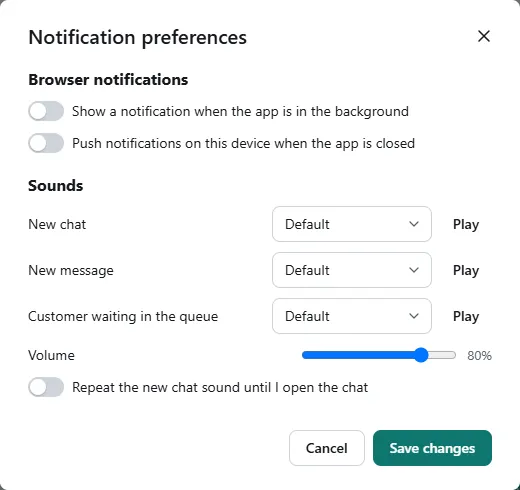
Under Sounds there is one line per event:
| Event | Default sound |
|---|---|
| New chat | Chime |
| New message | Pop |
| Customer waiting in the queue | Bell |
- For each event pick Default, Chime, Bell, Pop or No sound. Click Play to hear it.
- Set the Volume.
- Switch on Repeat the new chat sound until I open the chat if one ring is easy to miss. A new chat assigned to you then rings every few seconds until you open it.
- Click Save changes.
A new message rings only when you are not already looking at that chat.
Turn on browser notifications
Section titled “Turn on browser notifications”Browser notifications show a system notification when a chat needs you and the app’s tab is in the background.
- Open Notification preferences.
- Switch on Show a notification when the app is in the background. Your browser asks for permission the first time; allow it.
- Click Save changes.
Clicking a notification brings the app forward on that chat. If your browser blocks notifications for the site, the dialog says so and the switch is off; allow notifications for the site in your browser’s settings, then come back.
A warning icon next to Notification preferences in the profile menu means notifications are switched on but this browser has not been allowed to show them yet.
Get push notifications when the app is closed
Section titled “Get push notifications when the app is closed”Push notifications reach this device even when no Click2Reply tab is open.
- Open Notification preferences.
- Switch on Push notifications on this device when the app is closed and allow notifications when the browser asks.
The switch is per device: turn it on in each browser or phone where you want pushes. It takes effect at once, without Save changes. Clicking a push opens the app on the chat. On devices that support it, the app’s icon also shows a count. When the app is open and in front of you, it rings itself instead of sending a push.
Logging out turns off push for that browser, so a shared computer does not keep receiving your notifications.
The switch is shown only in browsers that support push. On iPhone and iPad, add Click2Reply to the Home Screen first (see below) and turn it on from there.
Install the app
Section titled “Install the app”Click2Reply can be installed on a phone or a computer, so it opens in its own window, starts on Chats and has its own icon.
- When your browser offers it, choose Install the app in the profile menu.
- Otherwise use your browser’s own install option, for example Add to Home Screen in the share menu on an iPhone.
The installed app is the same agent app, signed in the same way.
Use Click2Reply on a phone
Section titled “Use Click2Reply on a phone”On a phone-width screen the rail and the top strip are replaced by a bar at the bottom:
| Button | Opens |
|---|---|
| Chats | The chat list, with a count of unread chats |
| Engage | Engage |
| Copilot | Copilot (when your organization has it; otherwise Home) |
| Team | Team |
| Me | The profile menu, with Accept chats, notifications and Log out |
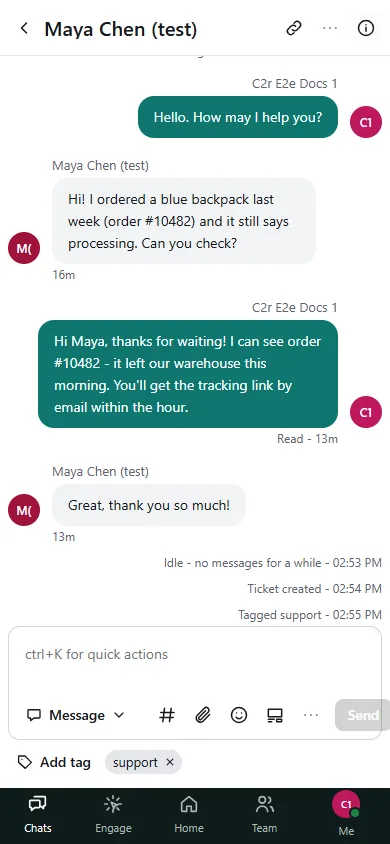
In Chats, the list fills the screen; tap a chat to open it and use the back arrow to return. The details sidebar opens over the whole screen.