

Post-chat form: ratings and feedback
The post-chat form asks customers for a rating and feedback when the chat ends. Answers appear in Reports under Chat forms and Chat satisfaction. The Preview shows the form as you build it.
Settings -> Forms -> Post-chat form
Changing the form needs the permission to change settings (the Owner, Vice owner and Admin roles). With two or more groups, pick one under Setup for to give that group its own form (see Settings).
A new organization starts with a required Chat rating and a thank-you text.
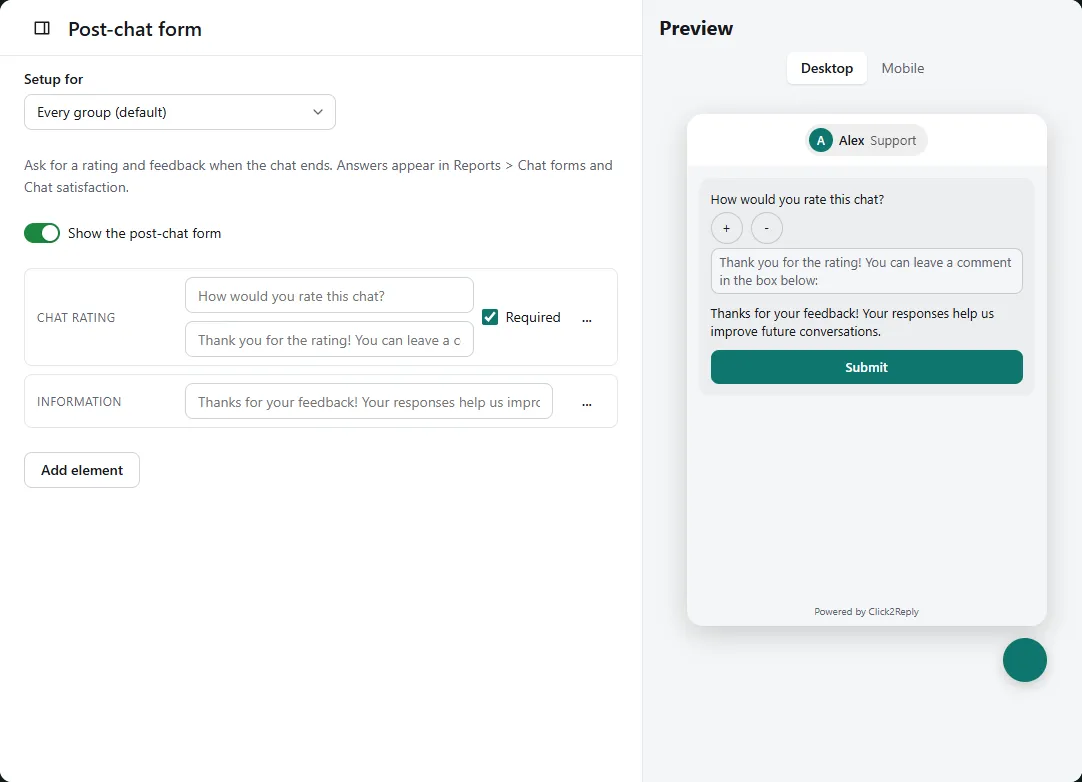
Turn the form on or off
Section titled “Turn the form on or off”- Switch Show the post-chat form on or off.
- Click Save changes.
Add an element
Section titled “Add an element”- Click Add element and pick a type:
- Chat rating - a good or bad rating, with a box for a comment.
- Information - a text shown on the form, with no answer.
- Name, Email, Phone - the customer’s contact details.
- Question (one line) or Long question (several lines).
- Choice list, Multiple choice or Single choice - answers from options you set.
- Consent - a box the customer ticks, with a link to your policy.
- Type the element’s label. Chat rating, Information, Name, Email and Phone may stay empty: the widget then shows its default text in the customer’s language, shown greyed in the field.
- For Chat rating, you can also change the comment prompt in the second field.
- For a choice element, type the options separated by commas.
- For Consent, paste the link to your policy in the field under the label.
- Tick Required if the customer must answer it.
- Click Save changes.
Chat rating, Name, Email and Phone can each be on the form once, so after you add one it is no longer offered. The Department picker belongs to the pre-chat form only. A form holds up to 40 elements.
Reorder or remove an element
Section titled “Reorder or remove an element”Click … next to an element, then Move up, Move down or Remove. The last element cannot be removed. Click Save changes when you are done.
When the form cannot be saved
Section titled “When the form cannot be saved”The page shows the first problem under the form and keeps Save changes greyed out until it is fixed, for example when a form that is on has only Information elements, so there is nothing to answer.
Related
Section titled “Related”- Pre-chat form
- Widget customization - Let customers rate the chat turns the rating in the widget’s header on or off, during the chat
- Reports