

Reply to a customer in the message box
The message box under an open chat is where you write to the customer, or leave a note only your team sees.
Chats -> open a chat -> the message box at the bottom
The message box appears once the chat is yours (or you are supervising it). For a chat that is still waiting, accept it first. See Accept a waiting chat.
Send a message
Section titled “Send a message”- Type in the message box.
- Press
Enter, or click Send.Shift+Enterstarts a new line.
What you type is kept as a draft when you switch to another chat and back, for as long as the tab is open. A counter appears when a message gets close to the length limit.
Under your last message the feed shows whether it was Delivered or Read, and when. If a message does not go out, it says Not sent. with a Try again button, or Message not delivered with the reason the channel gave (for example that the reply window has closed, or that the customer blocked the account).
Click Load earlier conversations at the top of the feed to read earlier conversations in this chat.
Write an internal note
Section titled “Write an internal note”A note is for your team only: the customer never sees it.
- Click Message at the left of the message box and pick Note, or press
Ctrl+Alt+P. - Type the note. To bring a teammate in, type
@and part of their name, then pick them from the list. They are mentioned in the note. - Click Add note.
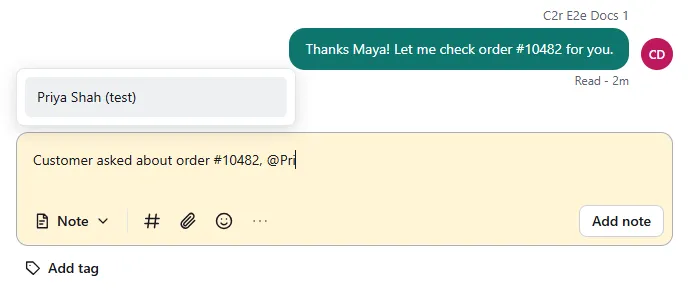
The box stays in Note mode for the rest of this conversation; a new conversation with the customer starts in Message mode again.
While you are supervising a chat, the box is always in Whisper mode: everything you send goes to the agents in the chat, never to the customer.
Use a canned response
Section titled “Use a canned response”Canned responses are saved replies, each with a shortcut.
- Type
#(or click the # button). A list of shortcuts opens. - Keep typing to narrow it, for example
#hel. - Press
Enter,TaborRighton a shortcut to see its texts (a shortcut can have several).Leftgoes back. - Pick a text with
Enteror a click. It goes into the message box, where you can still edit it.
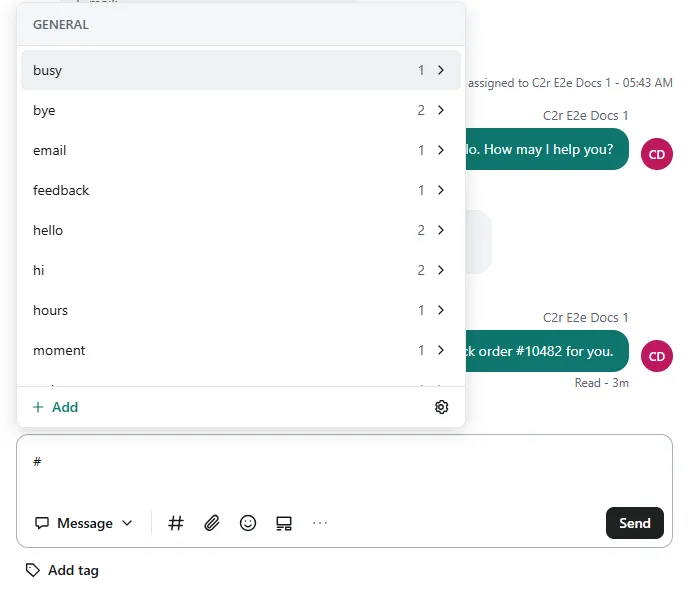
Responses saved for one group appear only in that group’s chats.
To save a new one without leaving the chat, click Add at the bottom of the list. Enter the Response text and a Shortcut (one word), tick Share with the team if everyone should get it, and click Save. If you may only keep private responses, sharing is refused and the app says so. The settings icon next to Add opens Canned responses.
Add emoji
Section titled “Add emoji”- Type
:and at least two letters, for example:thu, then pick from the list. - Or click the smiley button for the full picker, with search, categories and your frequently used emoji.
To stop the # and : lists from opening as you type, open the … menu in the message box
and untick Autocomplete. The same menu has a Shortcuts guide.
Send files
Section titled “Send files”- Click the paperclip, press
Ctrl+Alt+U, drag files onto the message box, or paste them. - Check the list under Ready to upload:. Add file adds more.
- Click Upload file (or Upload files).
Each file can be up to 10 MB unless your plan sets another limit; a file that is too large is marked before upload. Some messaging channels cannot send some kinds of files, and say so in the list. Files sent while in Note mode stay internal.
The paperclip is shown only when file sharing is on for your organization. See File sharing.
Send a rich message
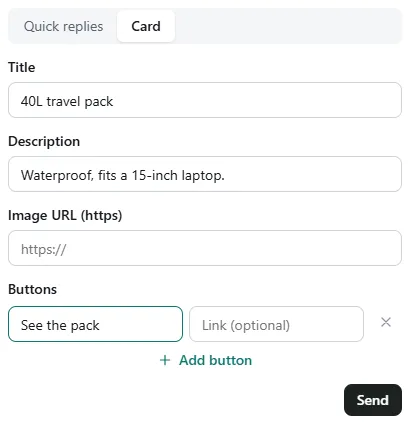
Section titled “Send a rich message”On channels that support them, the rich message button builds an interactive message:
- Quick replies: a Question and up to 13 Answers the customer taps to reply.
- Card: a Title, a Description, an Image URL (https) and Buttons. A button with a link opens it; a button without one sends its text back as the customer’s answer.
Fill it in and click Send. Rich messages are not available in Note mode.
Send a WhatsApp template
Section titled “Send a WhatsApp template”WhatsApp only lets you write freely within a reply window after the customer’s last message. The box shows Reply window open until a date and time. Once the window has closed, the message box says The reply window is closed: send an approved template.
- Click the WhatsApp button in the message box.
- Choose a template from your approved templates.
- Fill in each Field the template asks for. The preview below shows the message.
- Click Send template.
Templates are created and approved in your WhatsApp Business manager; only approved templates whose values are all text can be sent from here. See Messaging apps and the WhatsApp developer guide.
Some channels allow a later follow-up from a human agent once the standard window has passed. The box then says replies go out as a human agent follow-up, and until when.
Use AI suggestions and text edits
Section titled “Use AI suggestions and text edits”These appear when your organization has connected its own AI model and turned the features on in AI model.
- Reply suggestions show above the message box and refresh as the customer writes. Click one
to put it in the box, or press
Ctrl+Alt+Cfor the first one. Edit it before sending if you like. - Improve with AI (the sparkle button) rewrites what you typed: Rephrase, More friendly, More formal, Fix grammar, Shorten or Expand.
React to a message
Section titled “React to a message”On chats from your website widget or chat page, hover a customer’s message and click the smiley to add a reaction (one of six). Click your reaction again to remove it. Reactions the customer adds to your messages show beside them.