

Welcome screen: the widget's home tab
The welcome screen is the home tab customers see in the widget before they start a chat. It can show your logo, a welcome text and shortcuts to pages such as your help center. The Preview shows it as you edit.
Settings -> Chat widget -> Welcome screen
Changing these settings needs the permission to change settings (the Owner, Vice owner and Admin roles). With two or more groups, pick one under Setup for to give that group’s widget its own welcome screen (see Settings).
Turn the welcome screen on or off
Section titled “Turn the welcome screen on or off”- Switch Show the welcome screen on or off.
- Click Save changes.
With it off, the widget opens straight to the chat.
Show your logo
Section titled “Show your logo”- Tick Show your logo.
- In Logo address (https), paste the address of your logo image, for example
https://your-site.com/logo.png. - Click Save changes.
The address must start with https://; otherwise the page shows Use an https:// address and
cannot be saved. Without a logo, the welcome screen shows a chat icon in your theme color.
Change the welcome text
Section titled “Change the welcome text”- Type your Welcome text, up to 120 characters.
- Click Save changes.
Leave it empty to show Welcome! Chat with us in the widget’s language.
Add links
Section titled “Add links”Add up to five shortcuts, such as your help center or order tracking:
- Under Links, click Add link.
- Type a Label and the link’s address. The address must start with
https://. - Click Save changes.
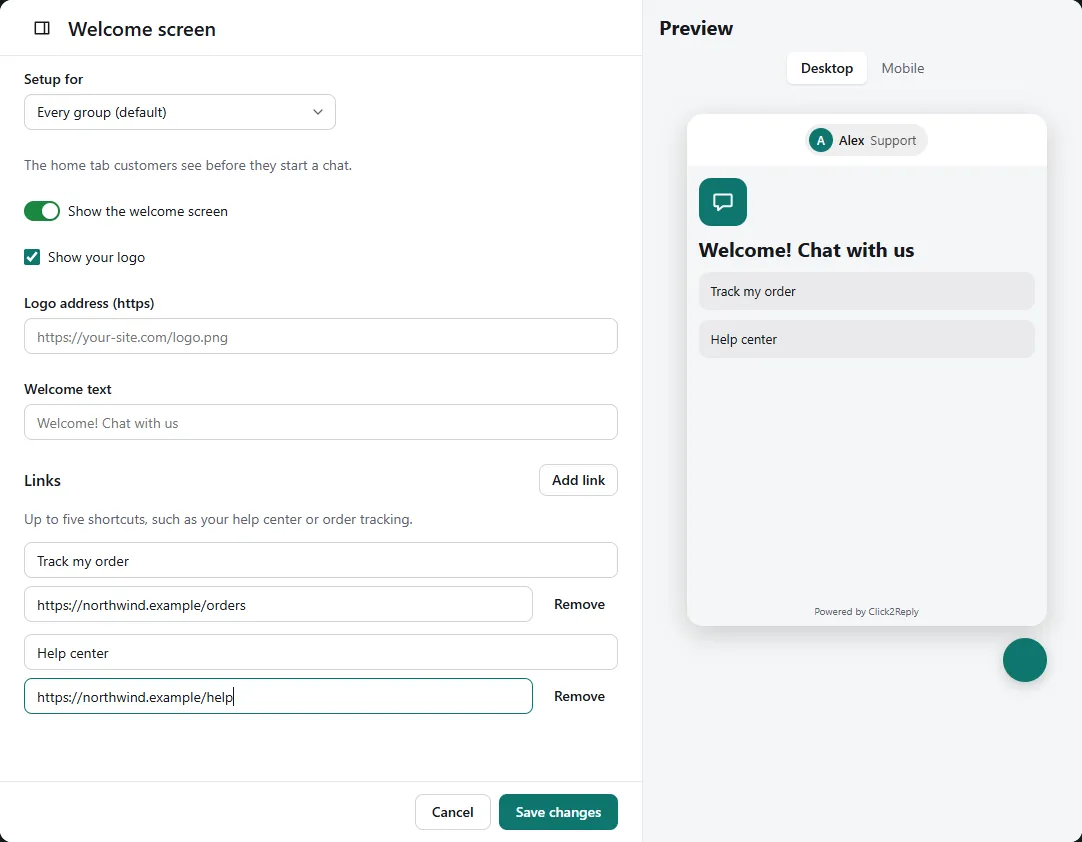
Click Remove next to a link to delete it. Add link disappears once there are five links.
The page cannot be saved while a link has no label or its address does not start with
https://.