

Archives: search and export past chats
Archives holds every chat once it ends, searchable by any word, note or customer detail. Agents use it to look up what was said before; admins use it to review chats and export them.
Archives
You see the chats of the groups you belong to. People who may read every chat (owners, vice owners and admins by default) see all of them. Your plan sets how far back chats are shown (see Plans).
Search and filter
Section titled “Search and filter”- Type in Search in archives… and press Enter. Matching words are highlighted in each chat’s preview.
- Click Add filter (or press Ctrl+Shift+L) and pick one:
- Date - a From and To day.
- Agent, Group, Tag or Channel - tick one or more.
- Rating - Rated good, Rated bad, Rated or Not rated.
- Country - a two-letter code, for example
TH. - Status - Archived, Still open or Waiting in the queue.
- Priority, Reached a goal, Made a sale or Has files - only chats that have it.
- Click Apply. The filter shows as a chip above the list; its close button removes it.
- Sort with Newest or Oldest. The count above the list is how many chats match.
The search and filters are part of the page address, so you can copy the address and share the same search with a teammate. Clear search and filters appears when nothing matches.
Read a chat
Section titled “Read a chat”Click a chat in the list to open it. Press Alt+Up and Alt+Down to move to the previous or next chat in the list.
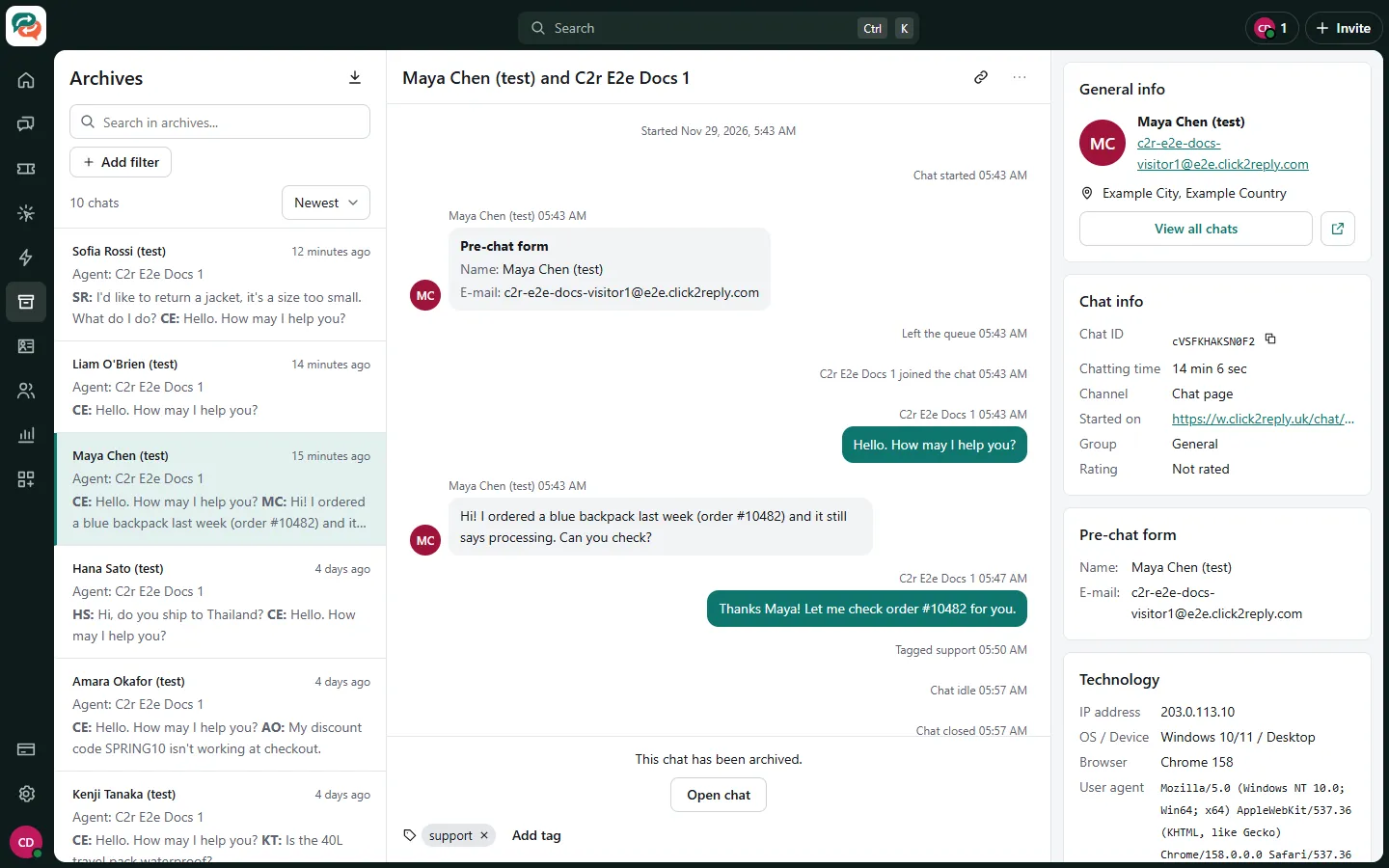
The middle column shows the transcript as your team saw it, internal notes included (marked Internal note), with the time each message was sent. Show earlier messages loads the start of a long chat. A chat from the long-term archive says so next to its start time.
The right column shows:
- General info - the customer’s name, email and location. View all chats lists every chat with this customer, and the arrow opens the customer profile.
- Chat info - the Chat ID (with a copy button), Chatting time, Channel, the page the chat Started on, Group, Rating and any Goals reached.
- Pre-chat form - the customer’s answers, when they filled one in.
- Technology - IP address, operating system and device, browser, user agent and where they Came from.
Tag an archived chat
Section titled “Tag an archived chat”- Under the transcript, click Add tag.
- Type or pick a tag and press Enter.
Remove a tag with its close button. A tag must exist first: create new ones in Tags.
Download a transcript or share a chat
Section titled “Download a transcript or share a chat”- The link button (Copy link to this chat) copies the chat’s address for a teammate.
- The menu (Chat actions) has Download transcript (printable page) and Download transcript (text).
- When the customer chatted more than once in the same conversation, Previous conversation and Next conversation in the same menu move between them.
Reopen a chat
Section titled “Reopen a chat”Under an archived chat, Open chat opens it in Chats, where you can write to the customer again. A chat that is still going on shows Go to the live chat instead.
Export chats
Section titled “Export chats”- Search and filter the list down to the chats you want.
- Click the download button next to the title (Export these chats).
- Choose Export as CSV (one row per chat) or Export as JSON (one chat per line, with its full transcript).
If the export fails, narrow the filters and try again.
Related
Section titled “Related”- Customers - every customer, with their chats, visits and notes.
- Chat reports - chat numbers over time.
- Data privacy and GDPR - how long chats are kept.