

Automate chats with AI, rules and flows
Automate gathers everything that saves your team typing and sorting: saved replies, AI help, rules that send chats to the right group, and workflows that act on chat events.
Automate -> Overview
Opening Automate lands on the Overview, a page of tiles grouped by what they do. Each tile has a Manage button that opens its screen.
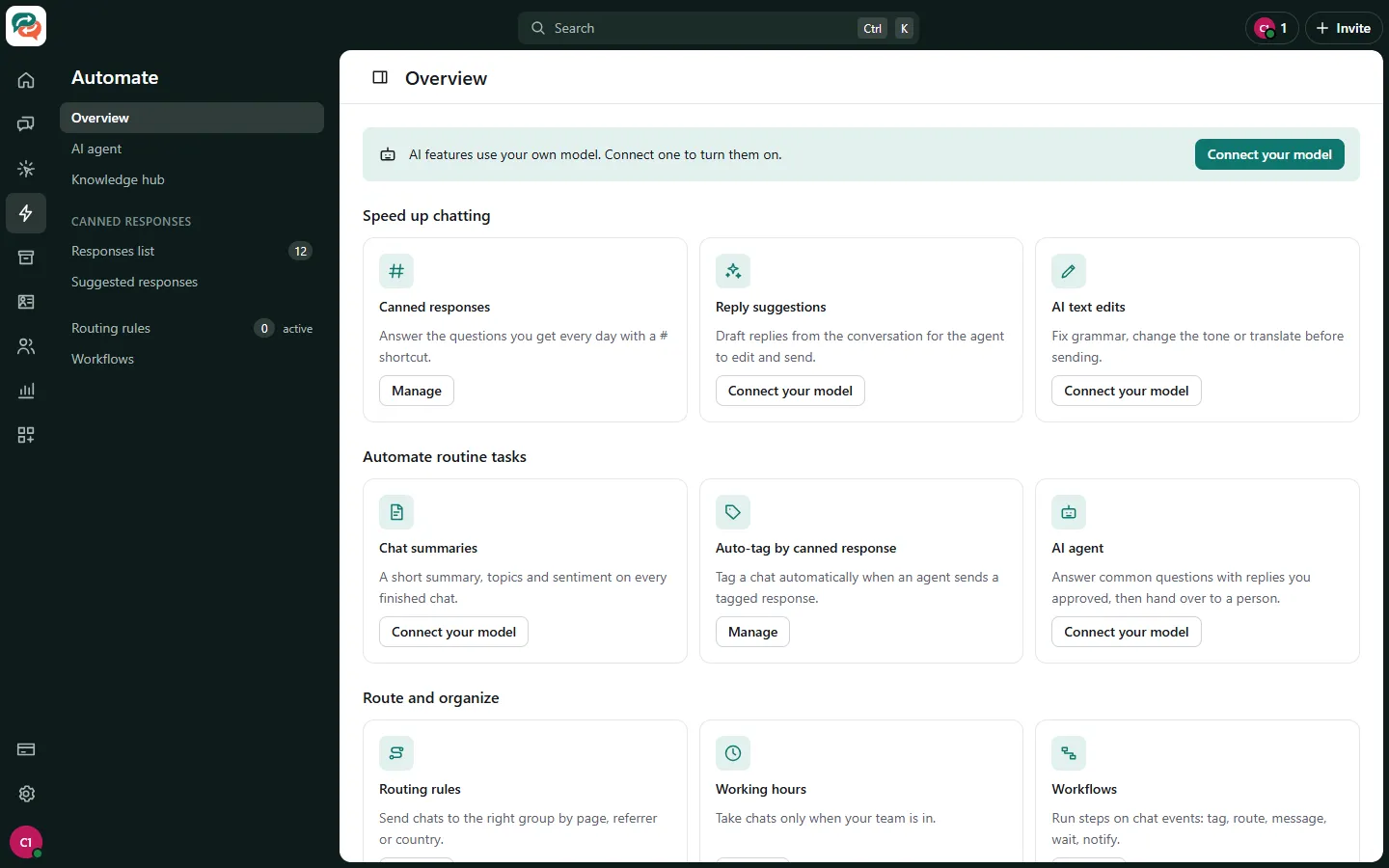
What is in Automate
Section titled “What is in Automate”Speed up chatting
- Canned responses - answer the questions you get every day with a
#shortcut. - Reply suggestions - draft replies from the conversation for the agent to edit and send.
- AI text edits - fix grammar, change the tone or translate before sending.
Automate routine tasks
- Chat summaries - a short summary, topics and sentiment on every finished chat.
- Auto-tag by canned response - tag a chat automatically when an agent sends a tagged response. Set it on each canned response.
- AI agent - answer common questions with replies you approved, then hand over to a person.
Route and organize
- Routing rules - send chats to the right group by page, referrer or country.
- Working hours - take chats only when your team is in.
- Workflows - run steps on chat events: tag, route, message, wait, notify.
The side menu also has the Knowledge hub, what your AI reads before it answers, and Suggested responses under Canned responses.
Turn on the AI features
Section titled “Turn on the AI features”AI features run on your own model: your provider, your key, your bill. Until one is connected, the Overview shows “AI features use your own model. Connect one to turn them on.”, and the AI tiles show Connect your model, which opens AI model.
Once a model is connected, an AI tile whose feature is switched off shows Turn on instead of Manage; it also opens the AI model settings, where the switches are.
If your model stops answering, admins see “Your model is not answering” on the Overview. Chats go to your team until it is fixed; Check the model opens the settings.
Who sees what
Section titled “Who sees what”- Workflows appear in the side menu, and on the Overview, only for people with the permission to change routing, widget and chat settings.
- Routing rules need that same permission to load and change.
- AI agent and Knowledge hub need the permission to change the AI model settings.
- Roles and permissions explains the built-in roles and custom ones.