

Customer details beside an open chat
The details sidebar shows what Click2Reply knows about the customer you are chatting with, so you can answer without asking twice.
Chats -> open a chat -> Show details (the i button in the chat header)
Click the same button, or press [, to hide it. The app remembers whether you keep it open. On a
narrower screen it opens over the conversation instead of beside it.
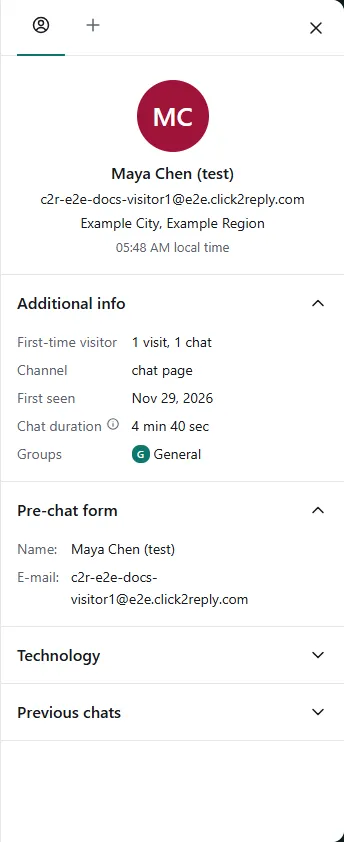
The sidebar has two tabs at the top: Customer details (the person icon) and Apps (the + icon).
The customer
Section titled “The customer”At the top: the customer’s avatar and name, their email (click it to write to them), phone and location, and their local time. If the customer is banned, a chip says Banned until and the date. When the visit carries a location, a small map shows the area.
Copilot summary
Section titled “Copilot summary”When your organization has connected an AI model and turned summaries on, a Copilot section shows a short title and summary of the conversation, its sentiment (positive, neutral or negative) and its topics.
- Click Summarize to make one, or Summarize again after the conversation has moved on.
- No summary yet. means none has been made for this conversation.
See AI model.
Additional info
Section titled “Additional info”- First-time visitor or Returning visitor, with the number of visits and chats.
- Channel: where the chat came from, for example widget or whatsapp.
- First seen: the date Click2Reply first saw this customer.
- Chat duration: time since this conversation started.
- Groups: the groups the chat belongs to.
Visited pages
Section titled “Visited pages”The pages the customer opened during their latest visit, newest first, each with how long ago. Came from shows the site that sent them, when known. Click a page to open it.
Pre-chat form
Section titled “Pre-chat form”The customer’s answers to your pre-chat form, when they filled one in. See Pre-chat form.
Custom fields
Section titled “Custom fields”Extra data about the customer, such as values your website passes to the widget or that an integration stored. Each shows its name and value. To send your own, see the Widget API.
Technology
Section titled “Technology”The customer’s IP address, OS / Device and Browser, from the last time the widget saw them. With Store visitors’ IP addresses shortened on in Data and privacy, the address shows only its network, and there is no map.
Previous chats
Section titled “Previous chats”Earlier chats with the same customer, with the last message and the date. Click one to open it in Archives. No earlier chats with this customer. means this is the first.
The Apps tab shows Customer notes: your team’s notes on this customer, which you can read and add during the chat (see Keep notes on a customer), and a link to Open the customer profile.
Related
Section titled “Related”- Customers: the full customer list and profiles.
- Reply to a customer
- Transfer, tickets and closing a chat