

Apps, integrations and data import
Apps is where you connect Click2Reply to the tools you already use: messaging channels, webhooks, API tokens and apps other developers built. It is also where you bring your data over from another platform. Everything in Apps works on every plan.
Apps
The menu on the left has Explore, Installed and Import from another platform, and under Developers shortcuts to Build your app, Webhooks and API tokens (see API and webhooks).
Explore apps
Section titled “Explore apps”Explore lists everything you can connect. Messaging channels come first, then the built-in API tokens and Webhooks, then apps. Each card shows the name, the category (and, for an app, who built it), a short description, and Connected when it is already set up.
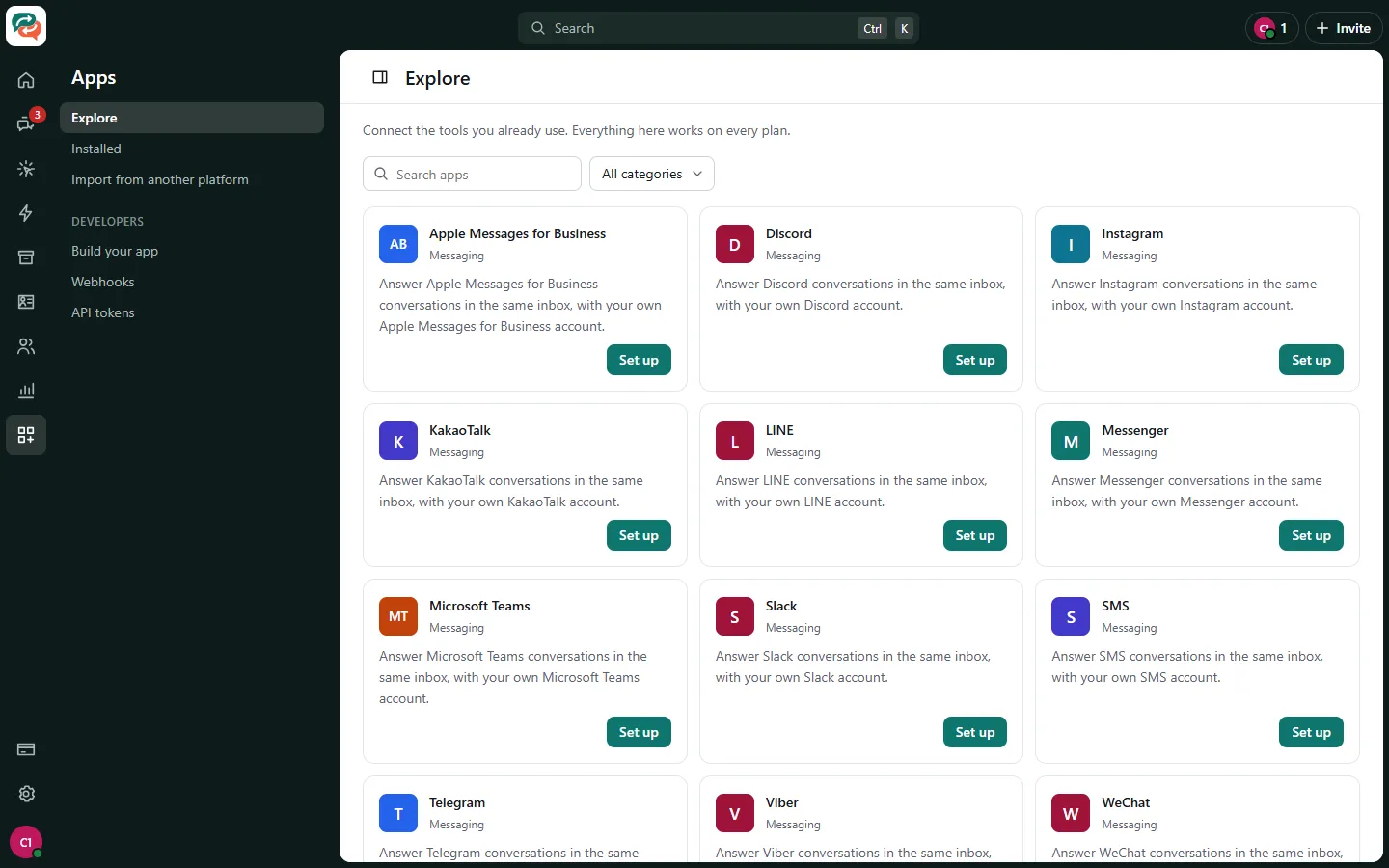
- Type in Search apps, or pick a category in All categories, to narrow the list.
- On the card you want:
- Set up opens the settings page for a channel or a built-in. Once it is connected the button reads Settings.
- Install opens the app’s own website, which sends you through the consent screen where you approve what the app may do.
Apps your own organization registered are listed too, even before they are published. To build one, click Build your app. If nothing matches your search, the list offers the same link.
Connecting a channel needs the permission to manage channels; see Messaging apps.
See and remove installed apps
Section titled “See and remove installed apps”Installed lists the apps connected to your account through the consent screen, with the date each was connected and the permissions it was given.
To remove one:
- Click Remove on its card.
- Confirm. The app loses access right away, and its webhooks are deleted.
Removing an app needs the Developers permission (see Roles and permissions).
Import from another platform
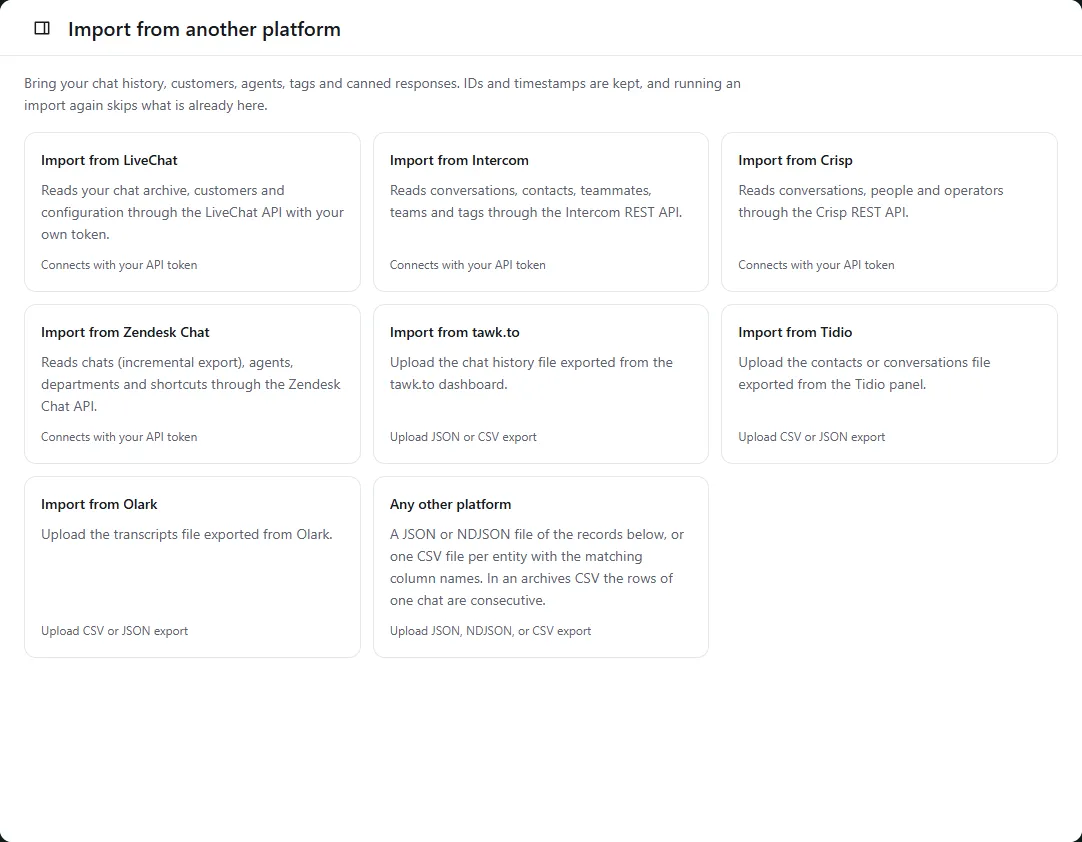
Section titled “Import from another platform”Bring your chat history, customers, agents, tags, canned responses and groups over from another live chat platform. IDs and timestamps are kept, and running an import again skips what is already here. Starting and following imports needs the permission to change settings.
- Go to Import from another platform and pick the platform, or Any other platform for a file in a standard format. Each card says whether it Connects with your API token or needs an export file (Upload JSON export, for example).
- Under Connect, enter the credentials the platform asks for. Or, under Upload the export, pick the file. A file can be at most 50 MB, and a JSON file at most 20 MB. For a CSV file from any other platform, pick what it holds in This CSV holds.
- Under What to bring, tick what to import. For chat history you can set Only chats since (optional).
- Click Start import.
Credentials are used only for this import and erased when it ends. Agents arrive as invites, so each one sets their own password; passwords never leave the other platform.
Only one import runs at a time. Back on Import from another platform, Imports shows each import with its status (queued, running, done, failed or canceled) and a progress bar per part, for example “1,204 imported, 3 already here”.
- Stop ends a running import. What is already imported stays.
- Resume continues a failed or stopped import where it left off; nothing is imported twice. An import that connects with an API token asks for the credentials again. A stopped file import cannot continue: upload the file again to start a new one.
For export formats and field mapping, see the import guide.