

Traffic: see live visitors on your site
Traffic lists everyone who has a page with your chat widget open, live. Agents use it to spot visitors worth talking to and start the chat themselves instead of waiting to be asked.
Engage -> Traffic
Opening Engage lands on Traffic, and the short link /traffic opens it too. The number next
to Traffic in the side menu is how many customers are on your website now.
Read the list
Section titled “Read the list”Each row is one visitor. The Activity column says what they are doing:
- Browsing - on the site, not chatting.
- Invited - you or a campaign sent them a message they have not answered.
- Queued - waiting in the queue for a free agent.
- Chatting - in a chat with an agent.
- Waiting for reply - in a chat, and the last message is theirs.
- Supervised - in a chat that another agent is supervising.
The tabs above the list (All customers, Chatting, Supervised, Queued, Waiting for reply, Invited, Browsing) narrow it to one state, with a count on each.
Next to the filters, Live means the list updates the moment a visitor moves. Auto-refresh means live updates are reconnecting and the list refreshes every few seconds instead; while that lasts it may show only the first visitors.
Click a row to open Details beside the list: location, device, number of visits (and whether they are returning), chats, cart, UTM tags, the last campaign they saw, the details your website sends about them, and the pages they visited. Click the row again, or the close button, to hide it. If the visitor leaves, the panel says so.
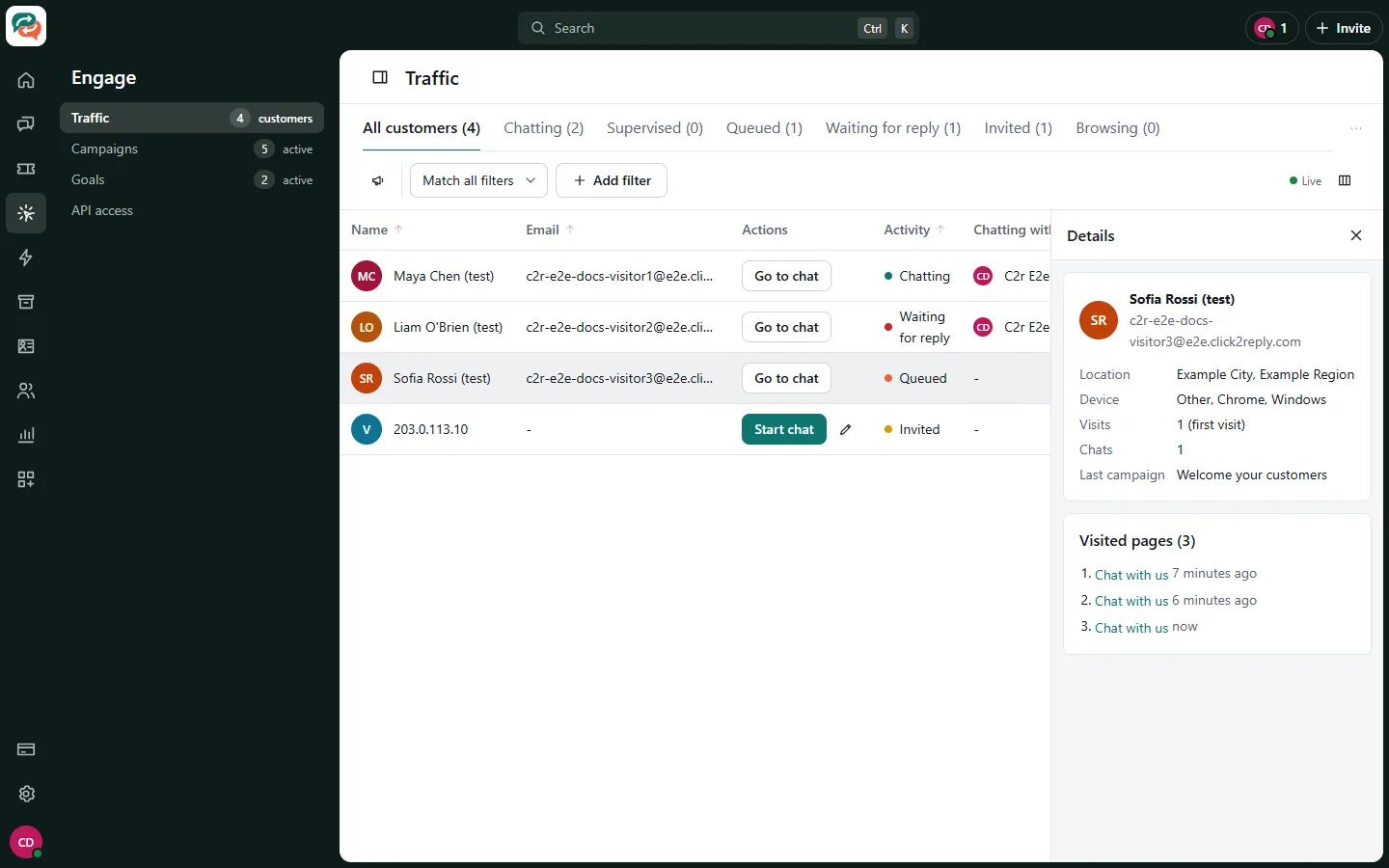
A visitor who has not given a name shows by their IP address.
Start a chat with a visitor
Section titled “Start a chat with a visitor”-
Find the visitor. Only visitors who are not already in a chat have the buttons; a visitor in a chat has Go to chat instead, which opens that chat.
-
Click Start chat in the Actions column.
-
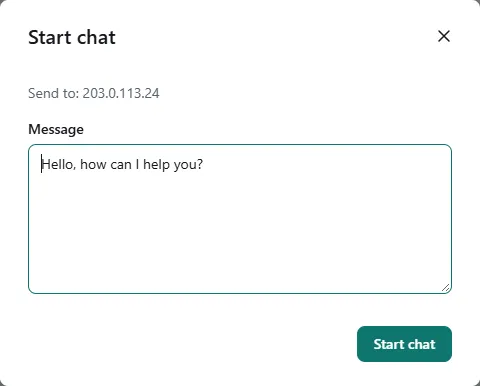
Change the message if you like. It starts as “Hello, how can I help you?” and can be up to 1024 characters.
-
Click Start chat (or press Ctrl+Enter).
The chat widget opens on the visitor’s screen with your message. A browsing visitor shows as Invited until they answer; their chat then appears in Chats.
Send a visitor a message without opening a chat
Section titled “Send a visitor a message without opening a chat”- Click the pencil next to Start chat (Send custom message to the visitor).
- Type the message and click Send.
The visitor sees your message as a greeting; the chat starts only if they answer it.
Message everyone in the view
Section titled “Message everyone in the view”- Pick a tab, and add filters if you need them (see below), so the list shows the visitors you want to reach.
- Click the megaphone (Message every customer in this view).
- Check Send to: - it counts only the visitors who are not chatting yet.
- Type the message and click Send to all.
A message goes to at most 500 visitors at a time when you filter the list or use a saved segment; Send to: says so when the view holds more. The confirmation says how many visitors got it, and how many were skipped.
Filter the list
Section titled “Filter the list”- Click Add filter and pick a field, for example Current page URL, Came from, Country, Device, Number of visits, Cart value, a UTM tag or Custom variable (a value your website sends).
- Choose how it compares (contains, is, is more than, is set and so on) and type the value. A filter with no value yet does not narrow the list.
- Add more filters, up to 20, and choose Match all filters or Match any filter.
- Remove a filter with its close button. When nothing matches, Clear filters empties them.
Save filters as a segment
Section titled “Save filters as a segment”- Set up the filters you want to keep.
- Open the menu next to the tabs (Segments) and choose Save filters as a segment.
- Type a Segment name and click Save segment.
The segment becomes a tab of its own, after the built-in ones. To remove it, open the tab, open the same menu and choose Delete segment.
Choose the columns
Section titled “Choose the columns”- Click Columns configurator at the right of the toolbar.
- Tick the columns you want to see. Name always stays.
- Click Save.
Click a column header to sort by it. Your columns and sort are saved for you only, on every device you sign in on.
When the list is empty
Section titled “When the list is empty”“No one is on your website right now” means no page with the widget is open. If you expected visitors, check that the widget is installed: Install the chat widget opens the install steps, and the developer guides cover HTML, WordPress, Shopify and more.
Visitors that a routing rule set to Turn chat off do not appear in Traffic.
Related
Section titled “Related”- Campaigns greet visitors automatically when they match your rules.
- Goals count what visitors do after a chat.
- API access in the side menu opens API and webhooks.