

Canned responses and reply shortcuts
A canned response is a saved reply your agents drop into a chat by typing # and its shortcut.
Every agent uses them; admins usually build the shared set.
Automate -> Canned responses -> Responses list
Every agent can create private responses. Shared responses need the permission to manage canned responses, which agents have by default. A private response can be changed only by its author; a shared one by anyone with that permission.
Create a canned response
Section titled “Create a canned response”- Click New canned response.
- Under Who can use it, pick Shared (everyone in the selected group can use it) or Private (only you can see and use it).
- Pick a Group, or leave All groups.
- Type the Response text, the reply your agents send. It can be up to 8192 characters.
- Under Shortcuts, type a shortcut and press Enter. Add as many as you need, up to 20. A
shortcut uses letters, digits,
_and-, up to 32 characters, and is saved in lowercase; you can paste several at once, separated by commas or spaces. - Optionally fill in Automate tasks (below).
- Click Save.
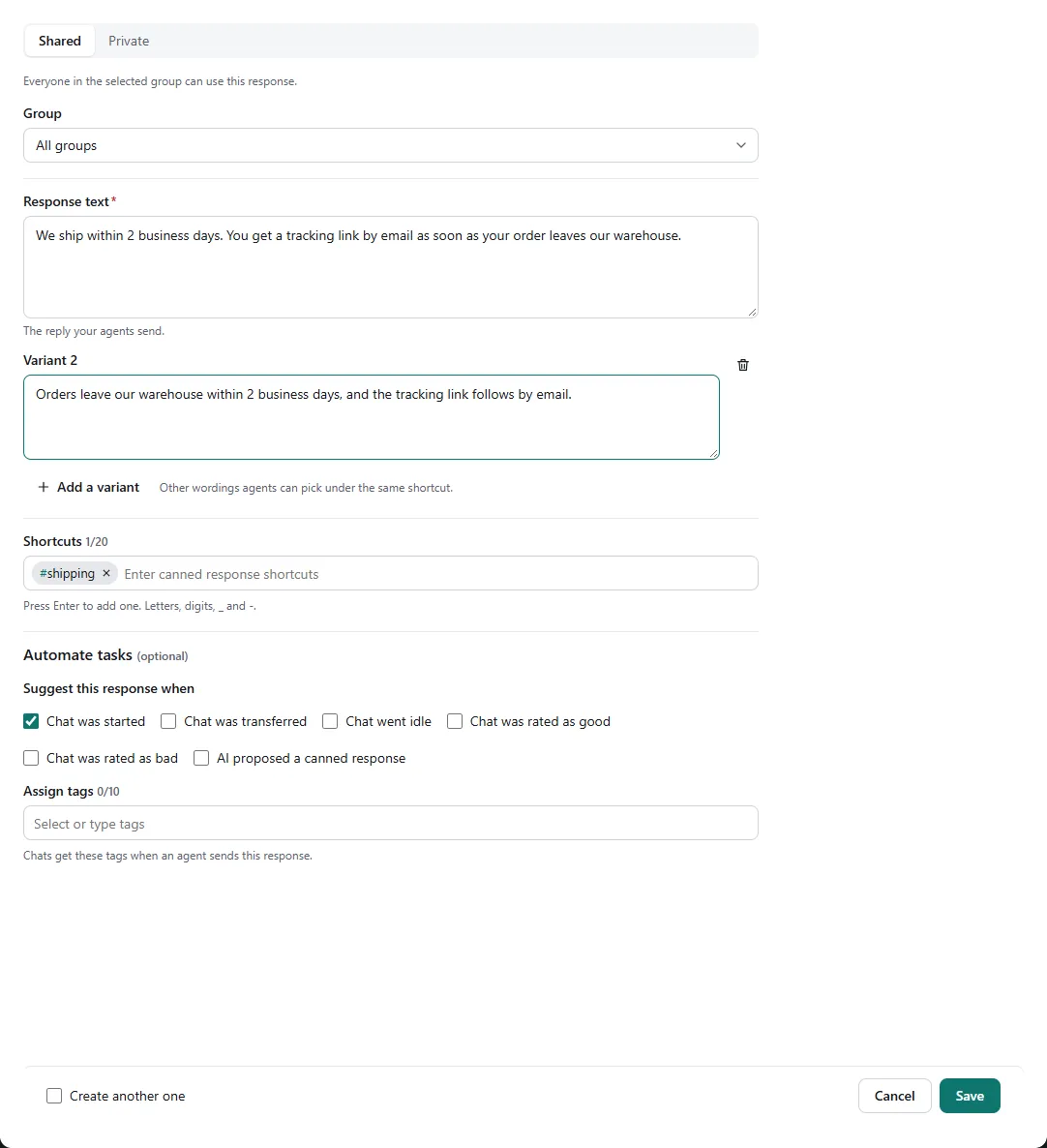
To add several in a row, tick Create another one before saving: the form clears and keeps the same visibility and group.
Add variants
Section titled “Add variants”Variants are other wordings of the same reply under the same shortcut, so your answers do not all read alike.
- In the form, click Add a variant. Each one is numbered from Variant 2.
- Type the wording. You can have up to 10.
In a chat, typing the shortcut lists the response text and its variants, and the agent picks one.
Use a response in a chat
Section titled “Use a response in a chat”- In the message box, type
#and the start of a shortcut, for example#ship. - Pick the shortcut, then the wording you want.
- Edit the text if you need to, and send it.
Agents only see the responses for the groups they belong to, plus the ones for All groups.
Tag chats automatically
Section titled “Tag chats automatically”Under Automate tasks, Assign tags adds tags to the chat whenever an agent sends this response, up to 10. Pick tags from the list or type them. A tag must already exist in Tags.
Suggest a response on chat events
Section titled “Suggest a response on chat events”Under Suggest this response when, tick the events after which the message box should offer this response first:
- Chat was started
- Chat was transferred
- Chat went idle
- Chat was rated as good
- Chat was rated as bad
- AI proposed a canned response
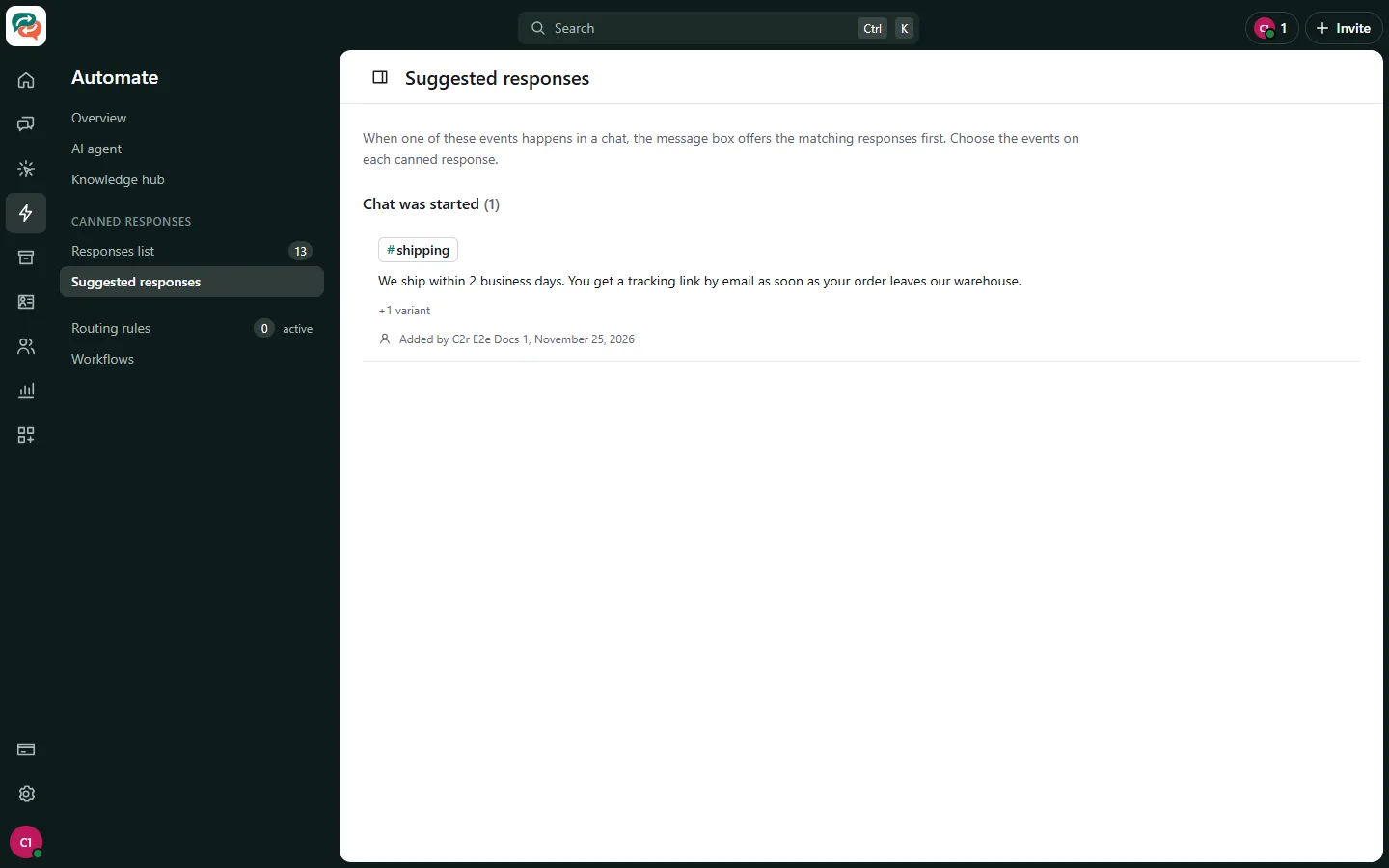
Automate -> Canned responses -> Suggested responses lists the responses picked for each event. When none are picked yet, Go to canned responses takes you back to the list.
Find, edit or delete a response
Section titled “Find, edit or delete a response”-
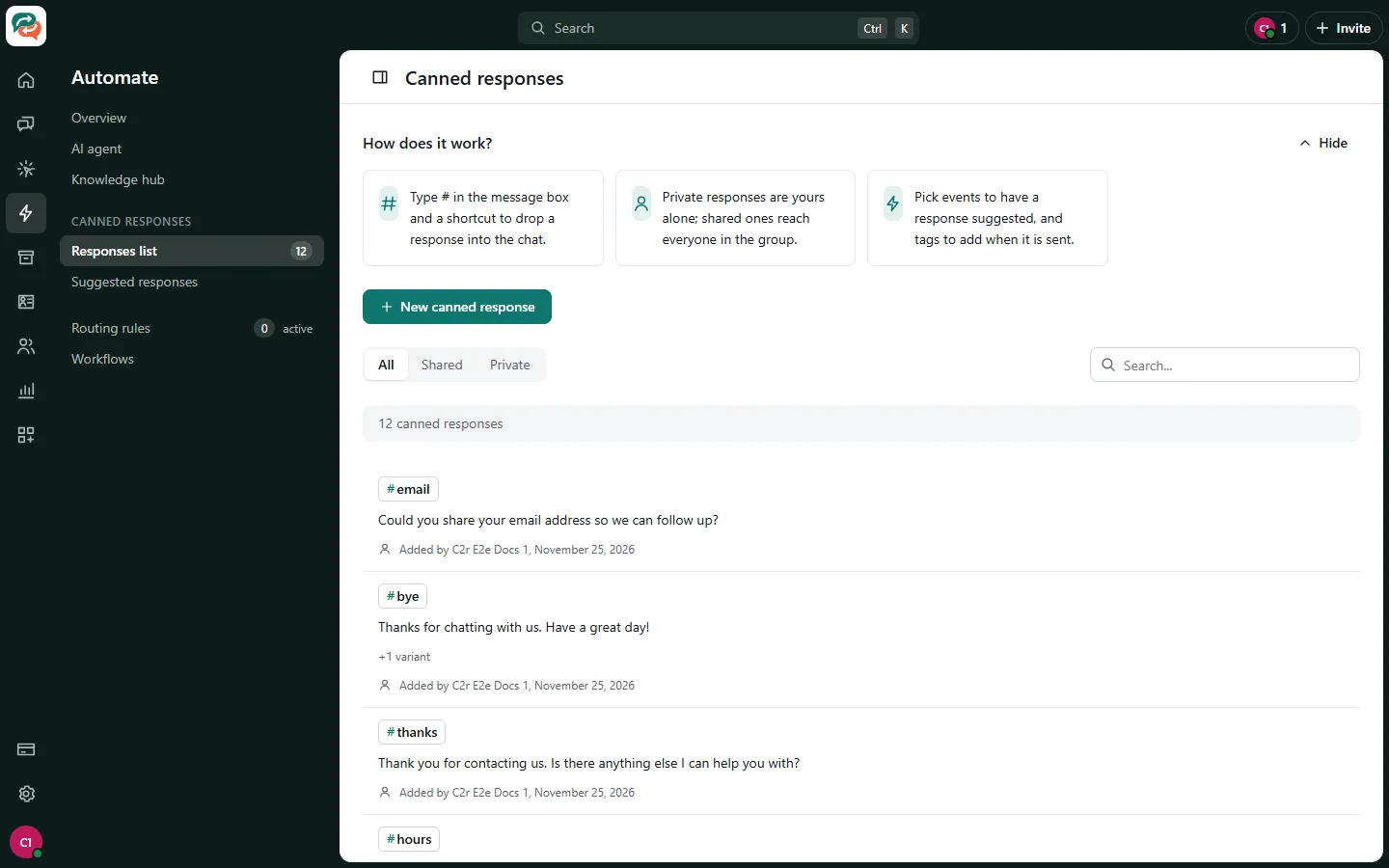
Filter the list with All, Shared and Private, or search it.
-
Each row shows the shortcuts, the text, how many variants it has, and who added it and when.
-
The pencil opens the form, the copy button opens a new form filled with a copy (Duplicate), and the trash button deletes it after you confirm. A deleted response is gone for the whole team.
The How does it work? panel at the top can be hidden with Hide; it stays hidden in that browser.
Related
Section titled “Related”- Reply to a customer covers the message box.
- Workflows can send a canned response as a step.
- The Knowledge hub reads your canned responses automatically.