

Login settings: SSO, 2FA and networks
Login settings set the sign-in rules for everyone in your organization: which sign-in methods are allowed, whether two-factor authentication is required, which networks may sign in, and which email domains join without approval.
Settings -> Security -> Login settings
Owners, vice owners and admins can change this page. Changing Auto-approve join requests also needs permission to manage the team, which these roles have.
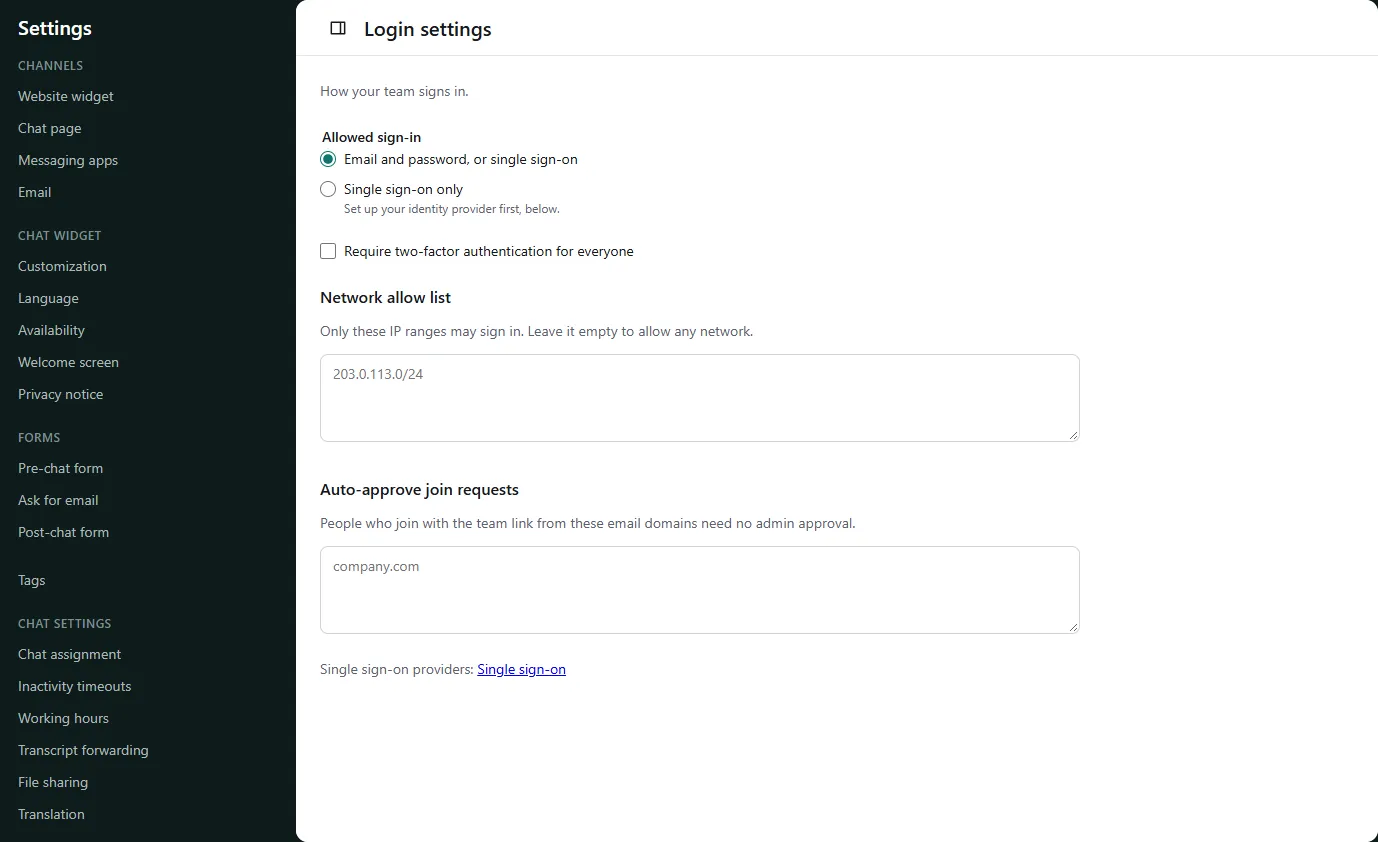
Allow single sign-on only
Section titled “Allow single sign-on only”Under Allowed sign-in, choose:
- Email and password, or single sign-on - the default.
- Single sign-on only - your team signs in through your identity provider. Set up the provider on Single sign-on first: this option does not save until an enabled provider exists.
Click Save changes.
With Single sign-on only, a team member who tries their password is sent to your identity provider instead. The owner can still sign in with a password, so you keep a way in if the provider fails.
Require two-factor authentication
Section titled “Require two-factor authentication”- Tick Require two-factor authentication for everyone.
- Click Save changes.
Team members who have not set up two-factor authentication are asked to set it up the next time they sign in, before they can use the app. See Profile and security.
Limit sign-in to your networks
Section titled “Limit sign-in to your networks”- Under Network allow list, enter the IP ranges that may sign in, in CIDR form, for example
203.0.113.0/24. For a single address, add/32, for example203.0.113.7/32. Separate ranges with new lines, spaces or commas. You can list up to 50. - Click Save changes.
Leave the box empty to allow any network. The list also applies to API tokens and to the download link in a finished data export’s email.
The list must include the address you are using now. If it does not, the page says This list would lock you out. Add your current address first. and nothing is saved.
Auto-approve join requests
Section titled “Auto-approve join requests”People who ask to join with your team link normally wait for an admin to approve them. To let colleagues in without that step:
- Under Auto-approve join requests, enter your email domains, for example
company.com. Separate them with new lines, spaces or commas. You can list up to 20. - Click Save changes.
People who join with the team link from these domains join as agents, with no approval needed. See Team for the team link.
Plan limits
Section titled “Plan limits”Turning on Single sign-on only, Require two-factor authentication for everyone or a network allow list needs a plan that includes security controls. On other plans, saving says Your plan does not include this. Upgrade on the Billing page. If your organization moves to a plan without them, what is already on stays on, and you can always turn it off. See Plans.
What happens after you save
Section titled “What happens after you save”New sign-in rules apply to everyone at once, including people who are already signed in.
Related
Section titled “Related”- Single sign-on
- Profile and security - set up your own two-factor authentication
- Roles and permissions