

Messaging apps: WhatsApp and Messenger
Answer every messaging app from the same inbox. Each channel uses your own business account with that app, so any per-message fees stay between you and the provider. Owners and admins connect the accounts; agents then answer their chats in Chats.
Settings -> Channels -> Messaging apps
Connecting, changing and disconnecting accounts needs the permission to connect messaging channels (the Owner, Vice owner and Admin roles, or a custom role that has it).
The channel list
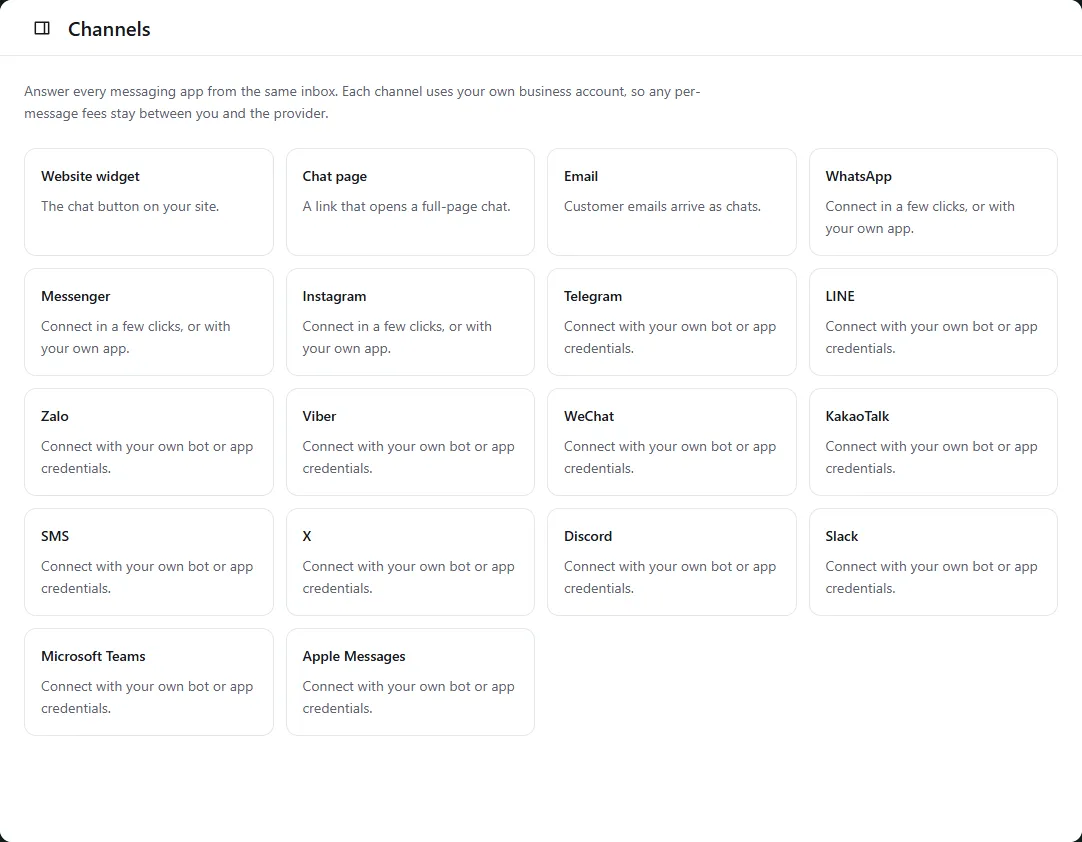
Section titled “The channel list”The page (titled Channels) shows a card per channel:
- Website widget, Chat page and Email link to their own pages: Install the website widget, Chat page and Email.
- Each messaging app: WhatsApp, Messenger, Instagram, Telegram, LINE, Zalo, Viber, WeChat, KakaoTalk, SMS, X, Discord, Slack, Microsoft Teams and Apple Messages.
A card shows how many accounts are connected (for example 1 connected), Needs attention when a connected account has an error, or Coming soon for a channel you cannot connect yet. WhatsApp, Messenger and Instagram say Connect in a few clicks, or with your own app.; the others say Connect with your own bot or app credentials.
Click a card to open that channel’s page.
Connect WhatsApp
Section titled “Connect WhatsApp”- Open the WhatsApp card.
- Under Connect a WhatsApp Business number, choose where its chats go in New chats go to (The default group, or one of your groups).
- Click Connect with Facebook.
- In the Facebook window, sign in, then pick or create your WhatsApp Business account and the number.
- When the window closes you see WhatsApp connected. and the number appears as a card.
Meta bills WhatsApp conversations to your own account. If the number cannot be registered, check its two-step verification PIN in WhatsApp.
Connect Messenger and Instagram
Section titled “Connect Messenger and Instagram”Messenger and Instagram connect through your Facebook pages, together:
- Open the Messenger or the Instagram card.
- Under Connect Facebook pages, click Continue with Facebook and sign in.
- The pages you manage are listed. For each page, tick Messenger, its Instagram account (Instagram @name), or both, and pick a group in the list next to it.
- Click Connect selected. You see Connected.
A channel already connected for a page shows (connected) and cannot be ticked again. If no pages come back, make sure you manage at least one Facebook page.
Connect with your own app or bot credentials
Section titled “Connect with your own app or bot credentials”Every other channel, and WhatsApp, Messenger and Instagram under Or connect your own app, connects with credentials from that provider’s console:
- Open the channel’s card.
- Optionally type a Name (shown to your team).
- Fill in the credential fields the channel asks for (for example Bot token for Telegram, or Channel access token and Channel secret for LINE). Fields marked (optional) can stay empty.
- Choose where its chats go in New chats go to.
- Click Connect.
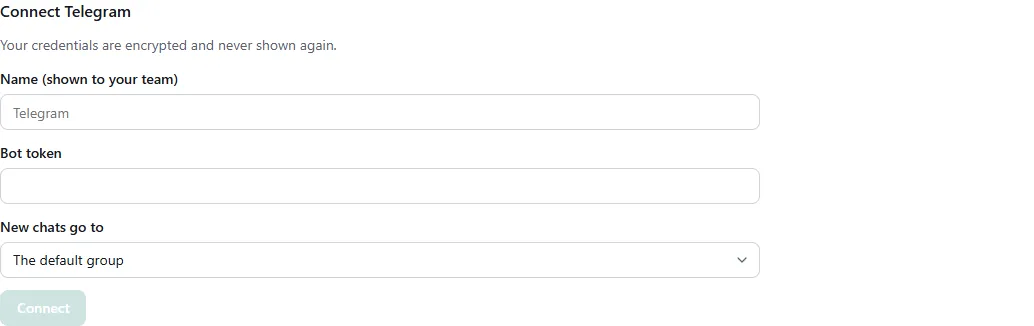
Your credentials are encrypted and never shown again. Some channels need one more step in the provider’s console after connecting: a card One more step in the provider’s console lists what to set there, such as a webhook address or a token, each with a Copy button.
The developer guide for each channel lists where to find its credentials: WhatsApp, Messenger, Instagram, Telegram, LINE, Zalo, Viber, WeChat, KakaoTalk, SMS, X, Discord, Slack, Microsoft Teams and Apple Messages.
Manage a connected account
Section titled “Manage a connected account”Each connected account shows as a card on its channel’s page, with its status (Active, Error or Off), its details and, where it has one, its webhook address. Changes here save right away.
- New chats go to: change the group its new chats go to.
- Check connection: test the account with the provider again.
- Turn off / Turn on: pause the account without removing it.
- Disconnect: remove the account. New messages stop arriving; past chats stay in Archives.
When an account has an error, its card shows the reason, for example The provider rejected these credentials. Fix it at the provider, then click Check connection.
If you disconnect an account whose webhook another connection still relies on, the app shows that webhook’s address. Move the webhook in the provider’s console first, then click I moved it - remove.