

Customers: profiles, notes and merging
Customers lists everyone who opened your website with the chat widget or wrote on a connected channel. Each customer has a profile with their contact details, chats, visits and your team’s notes.
Customers
Find a customer
Section titled “Find a customer”- Type in Search by name, email or phone.
- Narrow the list with All, With chats or Banned.
- Choose Seen any time, Seen in the last 7 days or Seen in the last 30 days.
- Sort with Last seen first, Newest first or By name.
The list shows each customer’s Email, Phone, when they were Last seen, how many Chats and Notes they have, and their Country. A banned customer is marked Banned. Click Load more at the bottom for more customers.
The search and filters are part of the page address, so you can share the same list with a teammate.
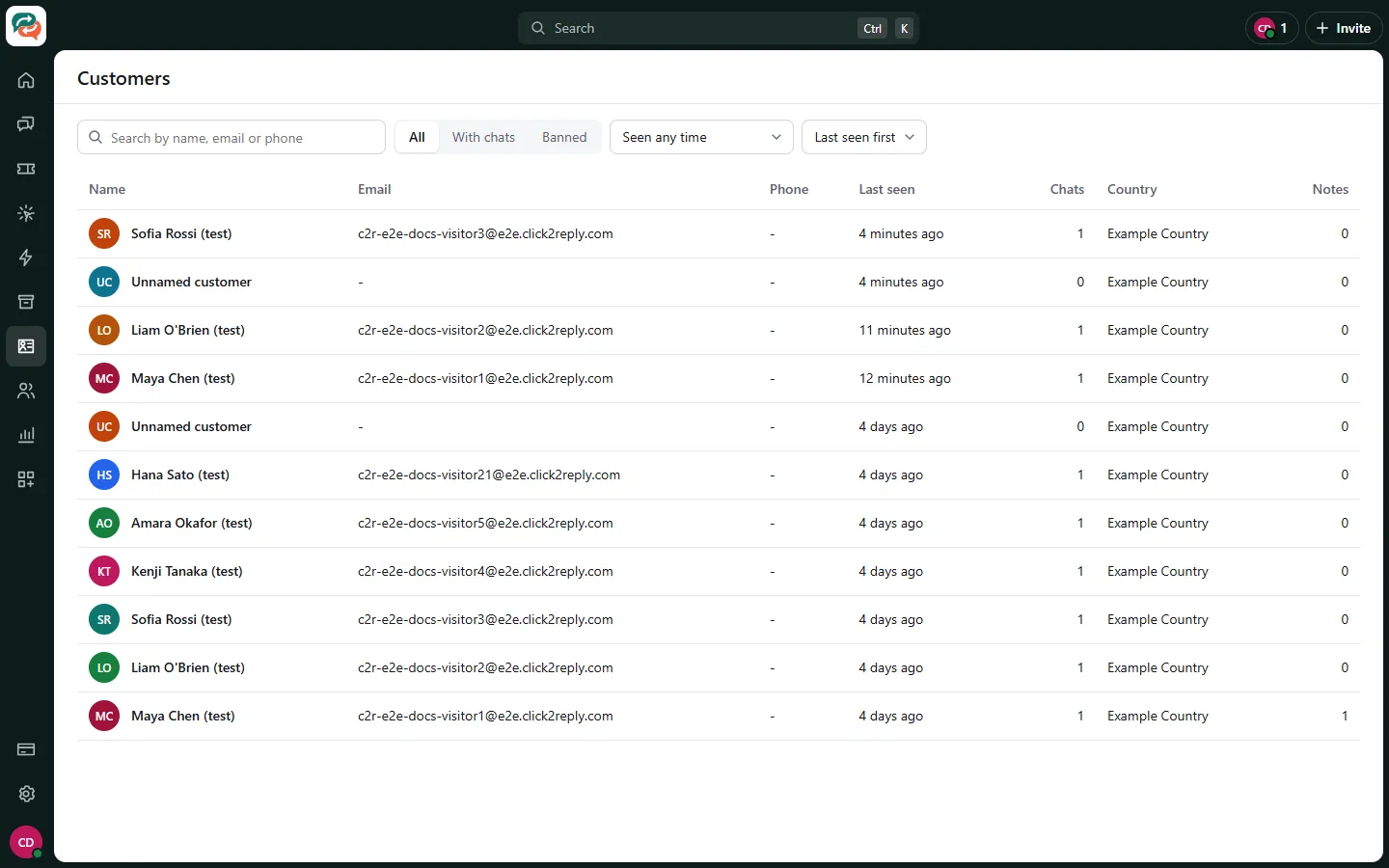
A customer who never gave a name, email or phone shows as Unnamed customer.
Open a customer profile
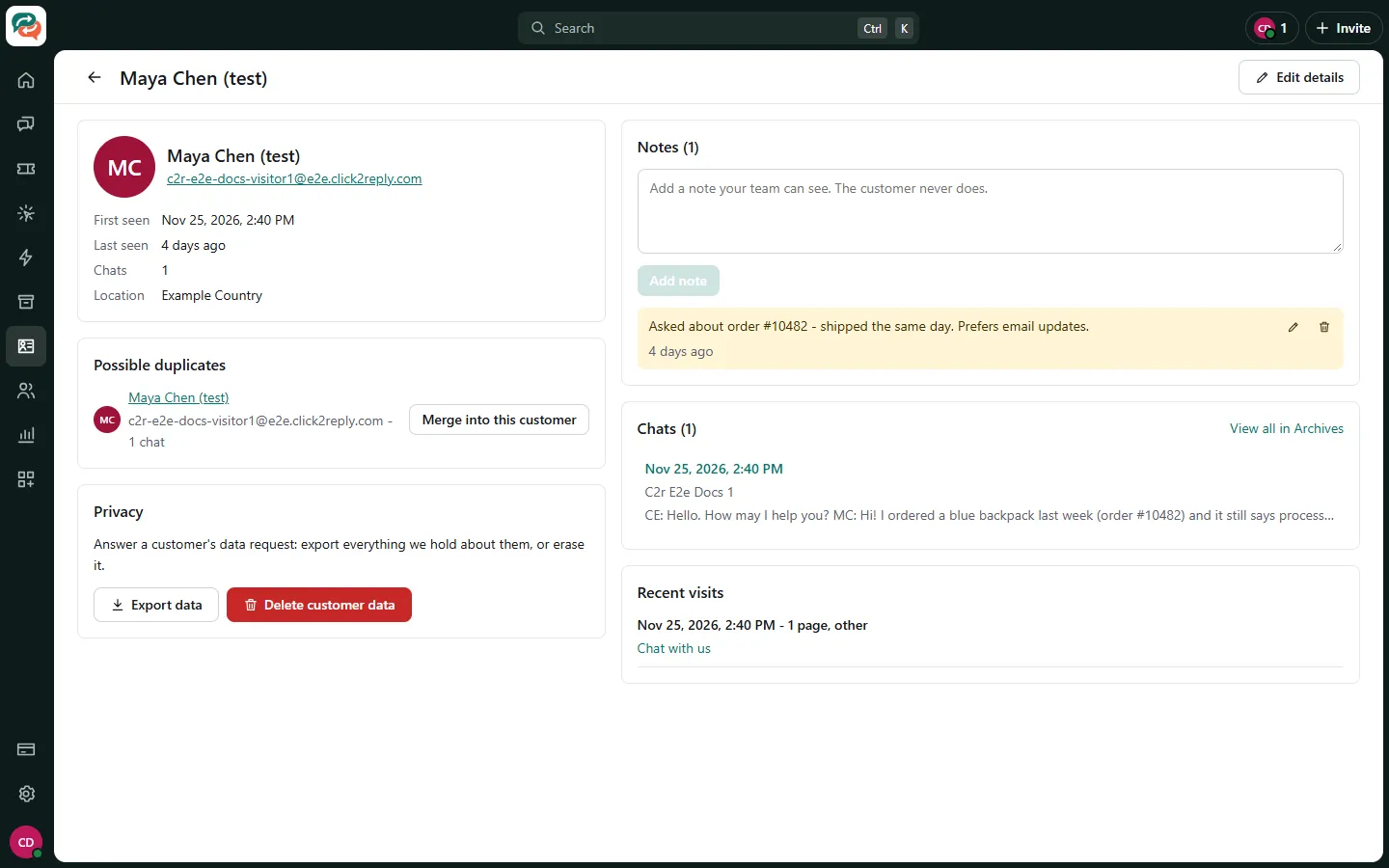
Section titled “Open a customer profile”Click a customer to open their profile. It shows:
- Their name, email and phone, when they were First seen and Last seen, their number of Chats, Your user ID (when your website sends one) and Location. A banned customer shows until when.
- Details from your website - the values your website sends about them.
- Notes - your team’s notes (below).
- Chats - their latest chats. Click one to read it, or View all in Archives for every chat in Archives.
- Recent visits - each visit’s date, pages viewed, device, where they came from and the last pages they opened.
Edit contact details
Section titled “Edit contact details”- Click Edit details at the top of the profile.
- Change the Name, Email or Phone.
- Click Save.
Keep notes on a customer
Section titled “Keep notes on a customer”Notes are for your team; the customer never sees them.
- Type in the note box under Notes and click Add note.
- To change a note, click its pencil, edit it and click Save.
- To delete one, click its trash button and confirm. It is removed for everyone on the team.
Only the note’s author or an admin can change or delete a note. The same notes show in the chat sidebar under Customer notes, so you can read and add them during a chat (see Customer details in a chat).
Merge duplicates
Section titled “Merge duplicates”When the same person shows up as more than one customer, the profile shows Possible duplicates.
- Check the duplicate’s name, contact and number of chats. Click the name to open it first if you are unsure.
- Click Merge into this customer and confirm.
The other customer’s chats, visits and notes move to this one, and the other customer is deleted. This cannot be undone.
Answer a data request
Section titled “Answer a data request”The Privacy card answers a customer’s request for their data. It needs the permission to export chats, customers and reports, which owners, vice owners and admins have (see Roles and permissions).
- Export data prepares a file of everything held about the customer. When it is ready, click Download export.
- Delete customer data erases their chats, visits, notes, files and contact details everywhere, including backups as they roll over. Type the phrase shown (their name, email or ID) and click Delete for good. This cannot be undone.
Related
Section titled “Related”- Banned customers - lift or change a ban.
- Data privacy and GDPR - retention and privacy settings.
- Traffic - customers on your website right now.