

Goals: track sign-ups and purchases
A goal counts each time a customer reaches a page or triggers an event you name, such as a thank-you page after a purchase. Goals show whether your chats and campaigns lead to sign-ups and sales.
Engage -> Goals
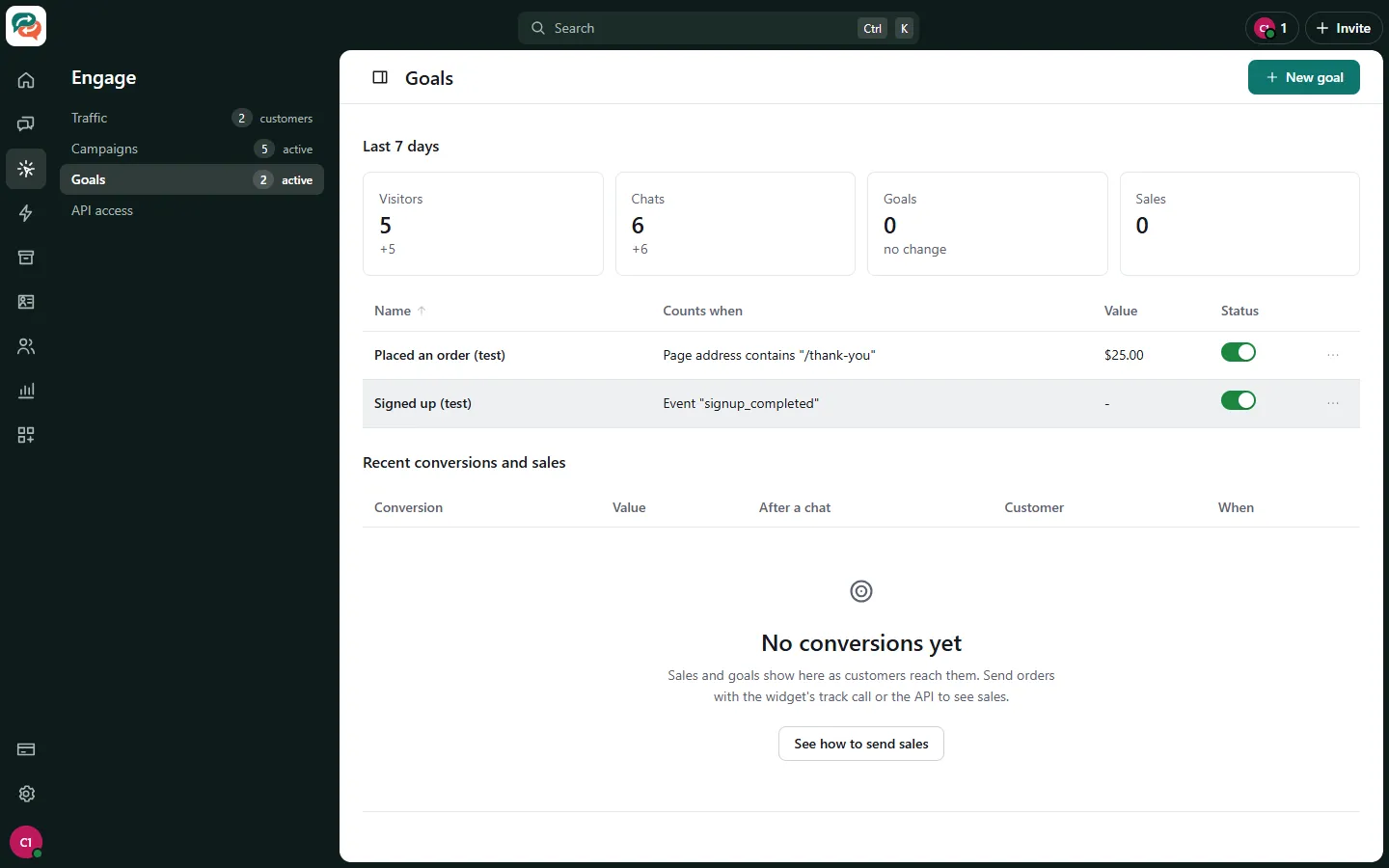
The number next to Goals in the side menu is how many goals are active.
Every agent can create and change goals. The Last 7 days numbers and the recent conversions list also need the permission to read reports (see Roles and permissions).
Create a goal
Section titled “Create a goal”- Click New goal.
- Enter a Goal name, for example “Signed up”.
- Under Count a goal when the customer, pick one:
- Opens a page - choose contains, is exactly, starts with or ends with, and
enter the page address, for example
/thank-you. - Triggers an event - enter the Event name your website sends, for example
signup_completed. Use letters, digits and. _ : -only.
- Opens a page - choose contains, is exactly, starts with or ends with, and
enter the page address, for example
- Optionally enter a Value of one conversion and its 3-letter Currency, for example
USD. - Leave Goal is active on, and click Create goal.
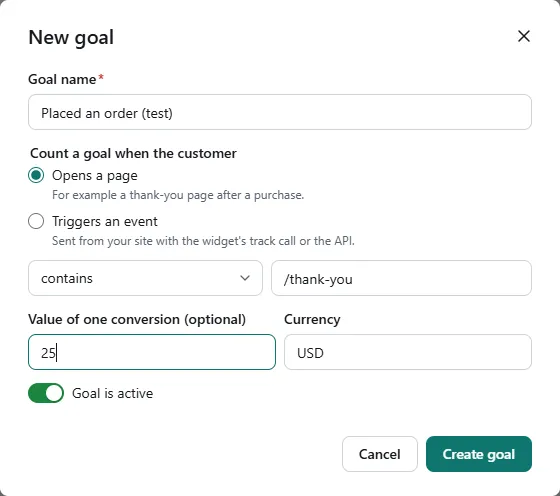
An event goal counts when your website sends that event with the widget’s track call or the API.
See the widget API for how to send events and orders.
Read the numbers
Section titled “Read the numbers”Last 7 days compares the last 7 days with the 7 before them:
- Visitors, Chats and Goals - the counts, with the change from the week before.
- Sales - the order total per currency, how many orders, and how much of it came after a chat.
A conversion counts for a chat when it happens within 7 days after that chat.
See recent conversions
Section titled “See recent conversions”The table at the bottom lists the latest goals reached and sales, with their value, whether they came After a chat, and when. Yes, view chats opens that customer’s chats in Archives, and Profile opens the customer.
Click a goal in the list to show only its conversions; click it again to show all of them.
Sales come from the orders your website reports. If you see none, See how to send sales opens API and webhooks.
Change, pause or delete a goal
Section titled “Change, pause or delete a goal”- Use the switch in the Status column to pause a goal or turn it back on.
- Choose Edit in the goal’s menu to change it, then click Save goal.
- Choose Delete to remove it. It stops counting; conversions already counted stay in reports.
Related
Section titled “Related”- Ecommerce reports for goals and sales over time.
- Campaigns to greet visitors on the pages that lead to a goal.
- Workflows can run steps when A visitor reaches a goal.