

Chat assignment: automatic or manual
Chat assignment decides how new chats reach your agents: Click2Reply hands them out, or agents pick them up themselves. Admins set it once for the whole organization, or per group.
Settings -> Chat settings -> Chat assignment
Owners, vice owners and admins can change this page. Agents can open it but see the settings read-only.
Choose how chats are assigned
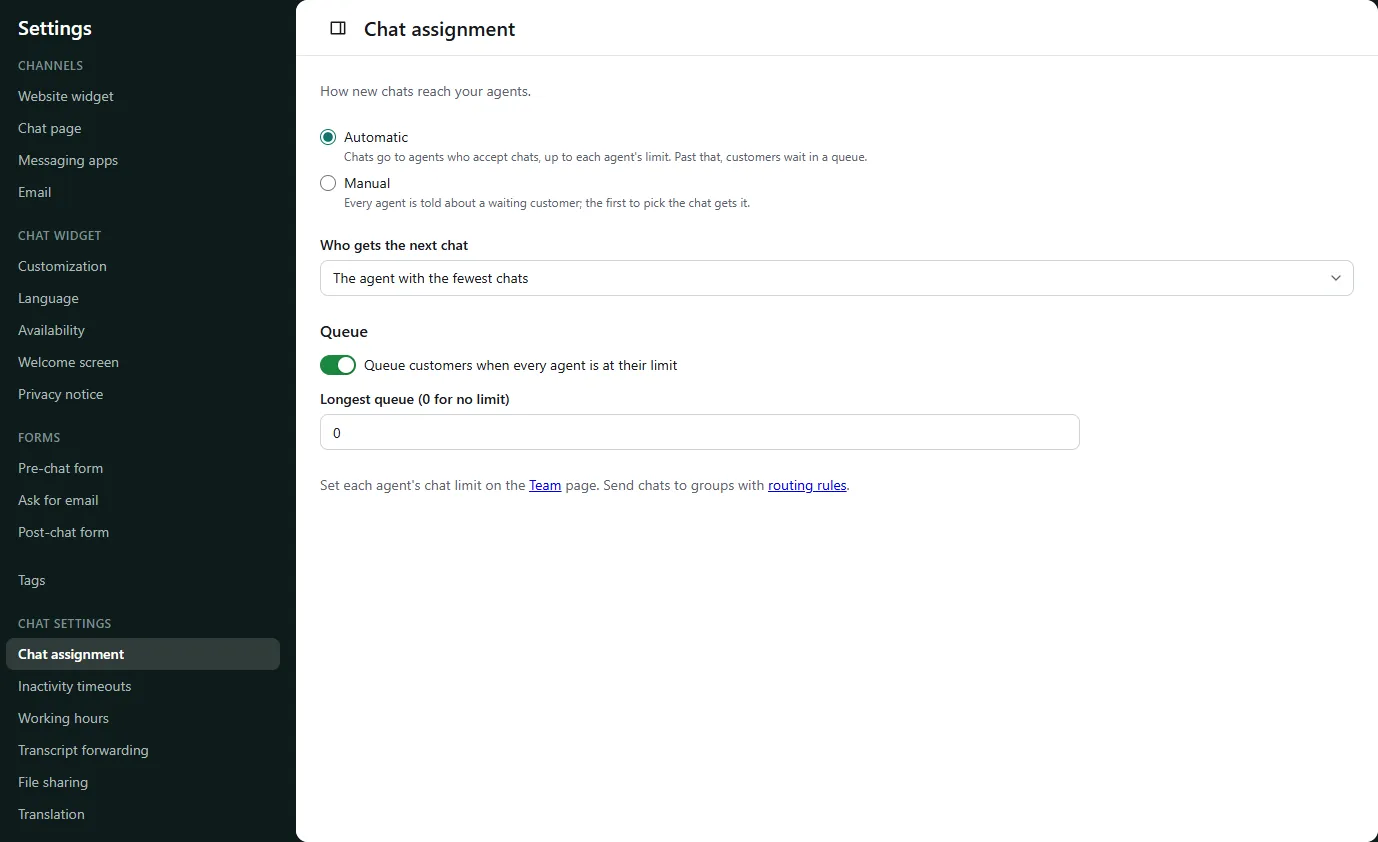
Section titled “Choose how chats are assigned”- Pick one of the two options:
- Automatic - chats go to agents who accept chats, up to each agent’s limit. Once every agent is at their limit, customers wait in a queue.
- Manual - every agent is told about a waiting customer, and the first one to pick the chat gets it.
- With Automatic, choose Who gets the next chat:
- The agent with the fewest chats
- Each agent in turn
- Click Save changes.
Each agent’s chat limit is set on the Team page. To send chats to a particular group, use routing rules.
Set up the queue
Section titled “Set up the queue”- Under Queue, turn on Queue customers when every agent is at their limit.
- In Longest queue (0 for no limit), enter the most customers who may wait at once, up to 10000. Leave it at 0 for no limit.
- Click Save changes.
Use different settings for one group
Section titled “Use different settings for one group”When your organization has two or more groups, a Setup for menu appears at the top of the page.
- In Setup for, pick the group. Every group (default) is the organization-wide setting.
- Change the settings and click Save changes. They apply to that group only.
While a group has its own settings, the page says This group has its own settings here. Click Use the default again to drop them and follow the organization default.
Defaults
Section titled “Defaults”A new organization starts with Automatic, The agent with the fewest chats, and the queue on with no limit.