

Sign up, log in and reset your password
These pages get you into the agent app: creating a new organization, logging in every day, and joining a team someone else already runs.
app.click2reply.com -> Sign up free or Log in
Create an account
Section titled “Create an account”Signing up creates a new organization with you as its owner. It is free, with no card needed.
- Open the agent app and click Sign up free.
- Enter your Work email and click Continue with email.
- Choose a Password. The checklist under the field turns green as each rule is met: 12 or more characters, a number, an uppercase letter and a symbol. Show password lets you check what you typed.
- Complete the security check if one appears, then click Create account.
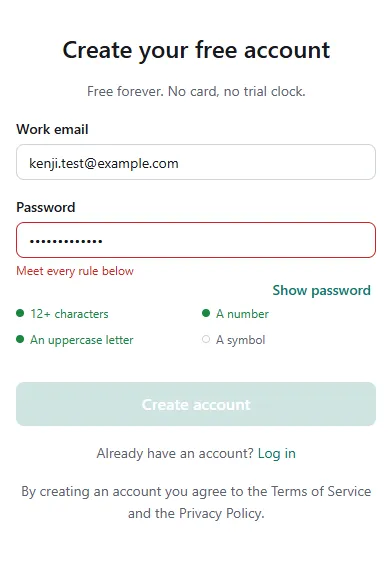
You go straight to the code step below. Your name and company website are asked for in the setup wizard that follows, guessed from your email.
If the email already has an account, the page says so and offers Log in instead.
Confirm your email
Section titled “Confirm your email”Check your email
Click2Reply sends a 6-digit code to the address you signed up with.
- Open the mail. The page offers a link to your web inbox (for example Open Gmail) when it recognizes your mail provider.
- Type or paste the code into the six boxes. The last digit submits it; there is nothing to click.
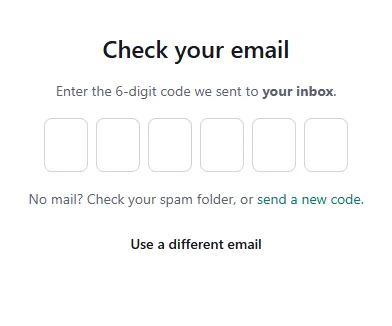
- No mail? Check your spam folder, or click send a new code. You can ask for a new code every 30 seconds.
- A wrong code shows how many tries are left. After too many, the code stops working and a new one is sent to you automatically.
- Use a different email signs you out and takes you back to the sign-up page.
After the code you continue to the setup wizard.
Log in
Section titled “Log in”Log in -> Welcome back
- Enter your Email and Password.
- Complete the security check if one appears.
- Click Log in.
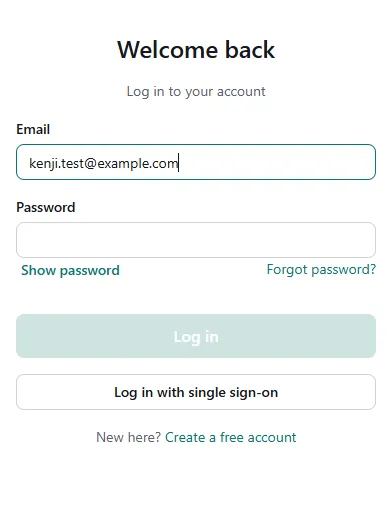
If two-factor authentication is on for your account, a second step asks for the 6-digit code from your authenticator app. Lost your phone? Click Use a recovery code instead and enter one of the recovery codes you saved. See Two-factor authentication.
Log in with single sign-on
Section titled “Log in with single sign-on”If your organization uses single sign-on, enter your Email and click Log in with single sign-on. You are sent to your company’s identity provider and come back signed in. An organization can require single sign-on for everyone; logging in with a password then sends you to the identity provider instead. Owners set this up in Single sign-on and Login settings.
Why a login fails
Section titled “Why a login fails”| Message | What to do |
|---|---|
| That email and password do not match. | Check both, or reset your password. |
| Too many attempts. Reset your password to unlock your account. | Reset your password; that unlocks the account. |
| Your organization does not allow sign-in from this network. | Your organization limits logins to certain IP addresses. Connect from an allowed network or ask an admin. |
| Your account in this organization is suspended. | Ask an admin to reactivate you in Team. |
| This account has no organization yet. | Sign up to create one. |
Reset your password
Section titled “Reset your password”Log in -> Forgot password?
- Click Forgot password? on the login page.
- Check your Email and click Send reset link.
- Open the mail and click the link. It works for one hour.
- Enter a New password that meets every rule, then click Set password and log in.
Setting a new password signs you out on every other device. If the link has expired or was already used, click Get a new link.
Accept an invite
Section titled “Accept an invite”When an admin invites you, you get an email with a link. The page that opens names the organization, who invited you and the role you get (Owner, Vice owner, Admin or Agent).
- Click the link in the invite mail. Your Email is filled in already.
- New to Click2Reply: enter Your name (customers and teammates see it) and choose a password. Already have an account: enter Your password for that account.
- Click Join the team.
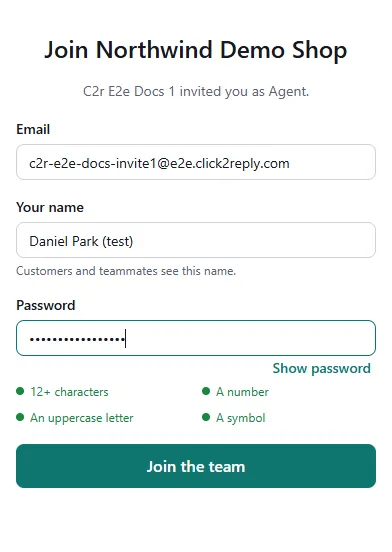
Accepting an invite confirms your email, so there is no code step. If the link no longer works, ask the person who invited you to send a reminder from the Team page. See Team.
Join with a team link
Section titled “Join with a team link”Admins can also share one join link with the whole team. People who sign up with it wait for an admin’s approval before they can chat.
- Open the join link.
- Enter Your name, your Work email and a password.
- Complete the security check if one appears and click Join the team.
Waiting for approval
Section titled “Waiting for approval”You then see Waiting for approval. Admins are told about your request and approve it in Team. The page checks by itself and opens the app as soon as you are approved, so you can leave it open, or close it and log in later. Log out leaves the page.
Related
Section titled “Related”- Set up your account: the wizard after sign-up.
- Your profile and two-factor authentication
- Team: inviting people and approving join requests.