

Working hours for your team and groups
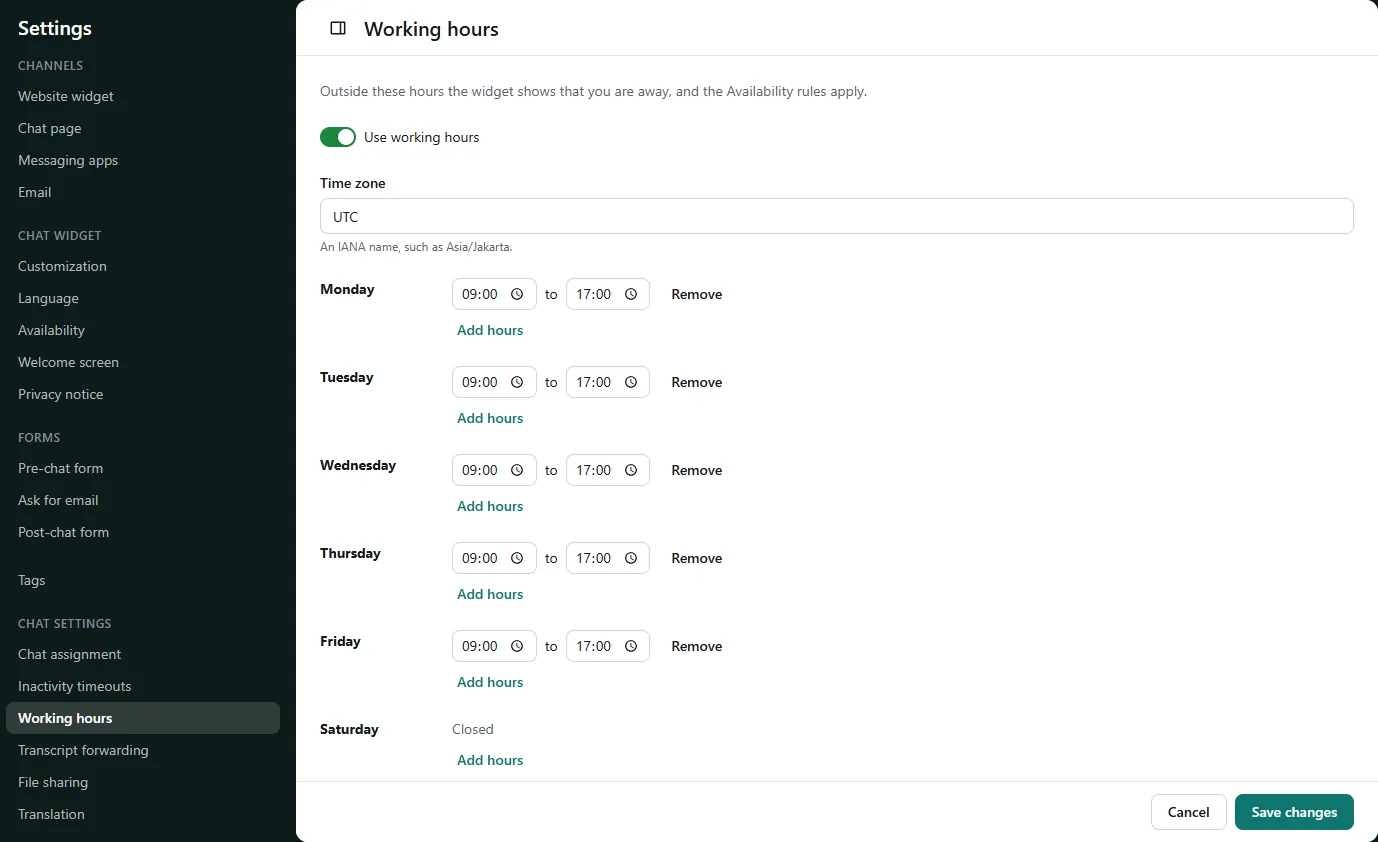
Working hours tell Click2Reply when your team is open. Outside these hours the widget shows that you are away, and the Availability rules apply.
Settings -> Chat settings -> Working hours
Owners, vice owners and admins can change this page. Agents can open it but see the settings read-only.
Set your working hours
Section titled “Set your working hours”- Turn on Use working hours. While it is off, you are always within hours.
- In Time zone, type an IANA time zone name, such as
Asia/Jakarta. - For each day, set the opening and closing time of each range (shown as 09:00 to 17:00).
- Click Add hours to add a range on that day, for example a second shift. A new range starts at 09:00 to 17:00. A day can have up to six ranges.
- Click Remove next to a range to delete it. A day with no ranges shows Closed.
- Click Save changes.
Each range must start before it ends, and the ranges on one day must not overlap. Until they are fixed, the page shows Each day’s hours must start before they end and must not overlap. and Save changes stays disabled.
A new organization starts with working hours off, the time zone UTC, and 09:00 to 17:00 Monday to Friday, with Saturday and Sunday closed.
Use different hours for one group
Section titled “Use different hours for one group”When your organization has two or more groups, a Setup for menu appears at the top of the page.
- In Setup for, pick the group. Every group (default) is the organization-wide schedule.
- Set the group’s hours and click Save changes.
While a group has its own hours, the page says This group has its own settings here. Click Use the default again to go back to the organization’s hours.
Related
Section titled “Related”- Availability
- Company details - the organization time zone used by reports
- Inactivity timeouts