

Banned customers: ban and lift bans
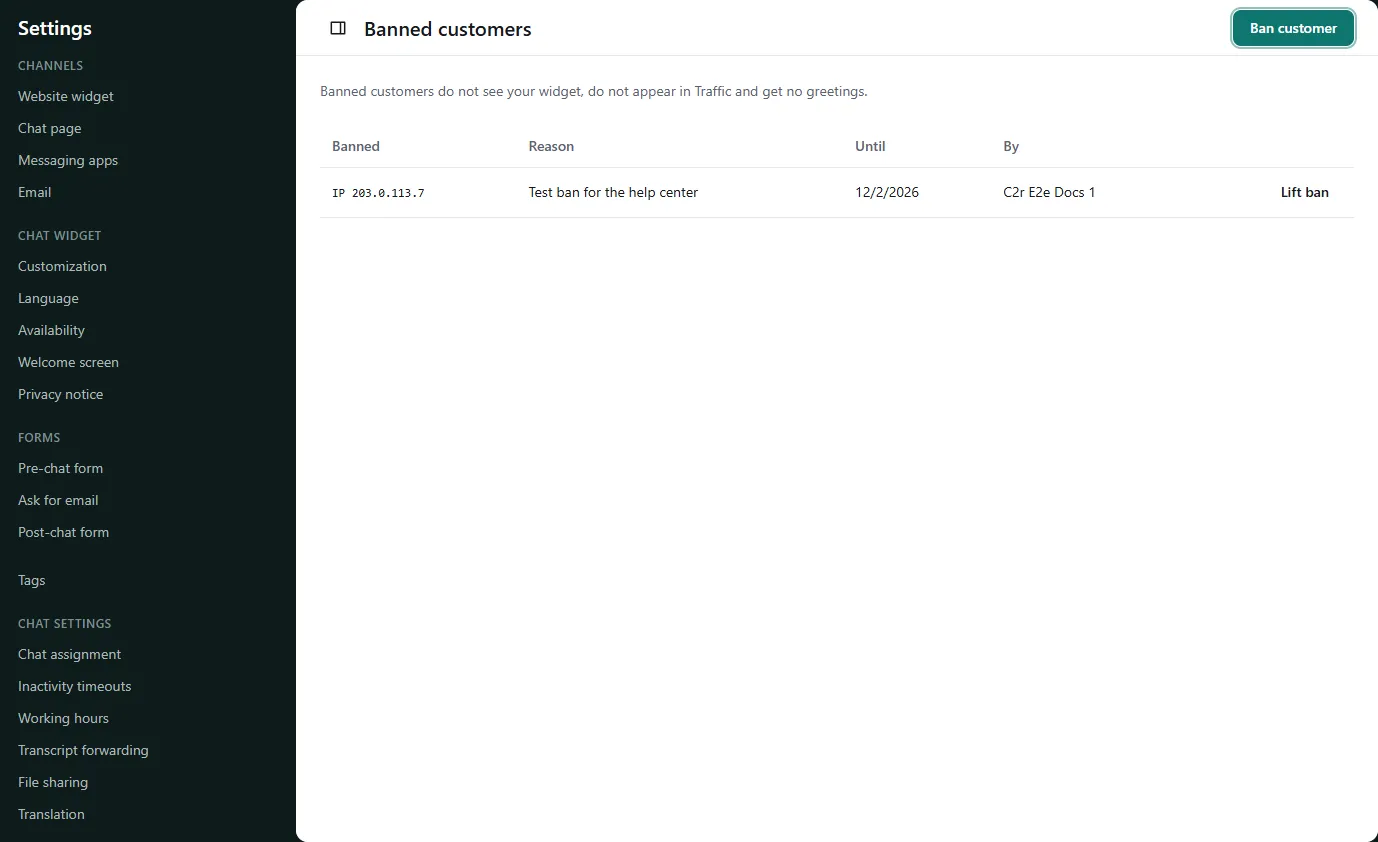
Banned customers do not see your widget, do not appear in Traffic and get no greetings. This page lists every ban and lets you add or lift one.
Settings -> Security -> Banned customers
Every built-in role, agents included, can see the list, ban customers and lift bans. A custom role can leave this out.
Ban a customer
Section titled “Ban a customer”You can ban a customer from a chat’s menu while you talk to them (see Chat actions), or here:
- Click Ban customer.
- Choose what to ban:
- By IP address or range - for example
203.0.113.7or203.0.113.0/24. - By customer ID - copy the ID from the customer’s details in Chats or Customers.
- By IP address or range - for example
- Enter the IP address or range or the Customer ID.
- In For, choose how long: 1 day, 7 days, 30 days, 1 year or Until I lift it.
- Optionally fill in Reason (only your team sees it), up to 500 characters.
- Click Ban customer.
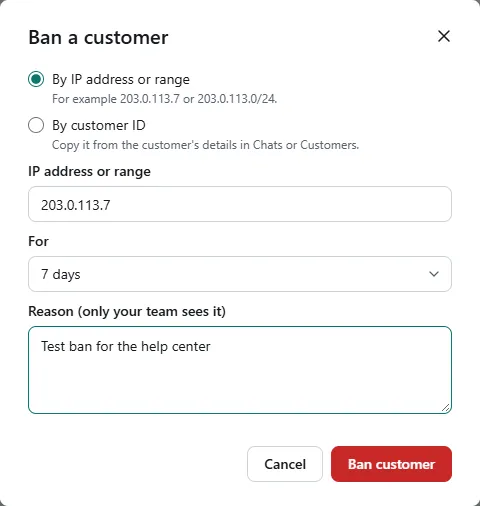
If the value is not a valid IP address, range or customer ID, the field says Check this value.
Read the list
Section titled “Read the list”Each row shows:
- Banned - the IP, visitor or customer that is banned.
- Reason - your team’s note, or
-. - Until - when the ban ends on its own. A ban with no end date shows Permanent: it lasts until someone lifts it.
- By - the team member who added it.
When the list is long, click Show more at the bottom.
Lift a ban
Section titled “Lift a ban”- Click Lift ban on the row.
- Confirm with Lift ban.
The customer sees your widget again right away.