

Billing, invoices and your current plan
Billing shows your Click2Reply plan, what you have used this month, and the plans you can move to. Owners and vice owners use it to change the plan and pay; everyone can open it to see the plan and usage.
Billing
Changing the plan, buying seats, invoices and billing details need the Billing permission, which only the Owner and Vice owner roles have (see Roles and permissions). Everyone else sees Ask an owner to change the plan. on the plan cards.
Your current plan
Section titled “Your current plan”The top of the page shows:
- Current plan: the plan’s name and price, for example “$19.00 per seat / month - renews Jan 1, 2027” for a card subscription, or “paid until” a date for a prepaid period. The free plan reads Free forever.
- A status when the subscription is not active: Trial, Past due or Canceled.
- Card and invoices, for a card subscription: opens the payment provider’s page to change the card and see the provider’s invoices.
- A meter for each limit of your plan, for example Agent seats “2 of 2” or Conversations this month “180 of 250”. A limit without a cap reads “unlimited”.

Bots never take a seat, and neither do suspended agents or open invites. Usage counts reset on the first day of each month (UTC).
Change your plan
Section titled “Change your plan”- Under Plans, pick Monthly or Yearly (save …%). Yearly prices are per seat per month, billed yearly.
- On the plan you want, click the button:
- Pay by card: opens a checkout page to start a card subscription.
- Pay with crypto (… months): opens a crypto payment page for a prepaid period. Pick the period first in the menu next to Monthly / Yearly. A 12-month period bills at the yearly price. A prepaid period does not renew by itself.
- Choose (plan): for the free plan, or when you already pay by card. The change applies right away after you confirm; a card subscription is charged or credited for the rest of the billing period.
- Contact us: plans priced on request.
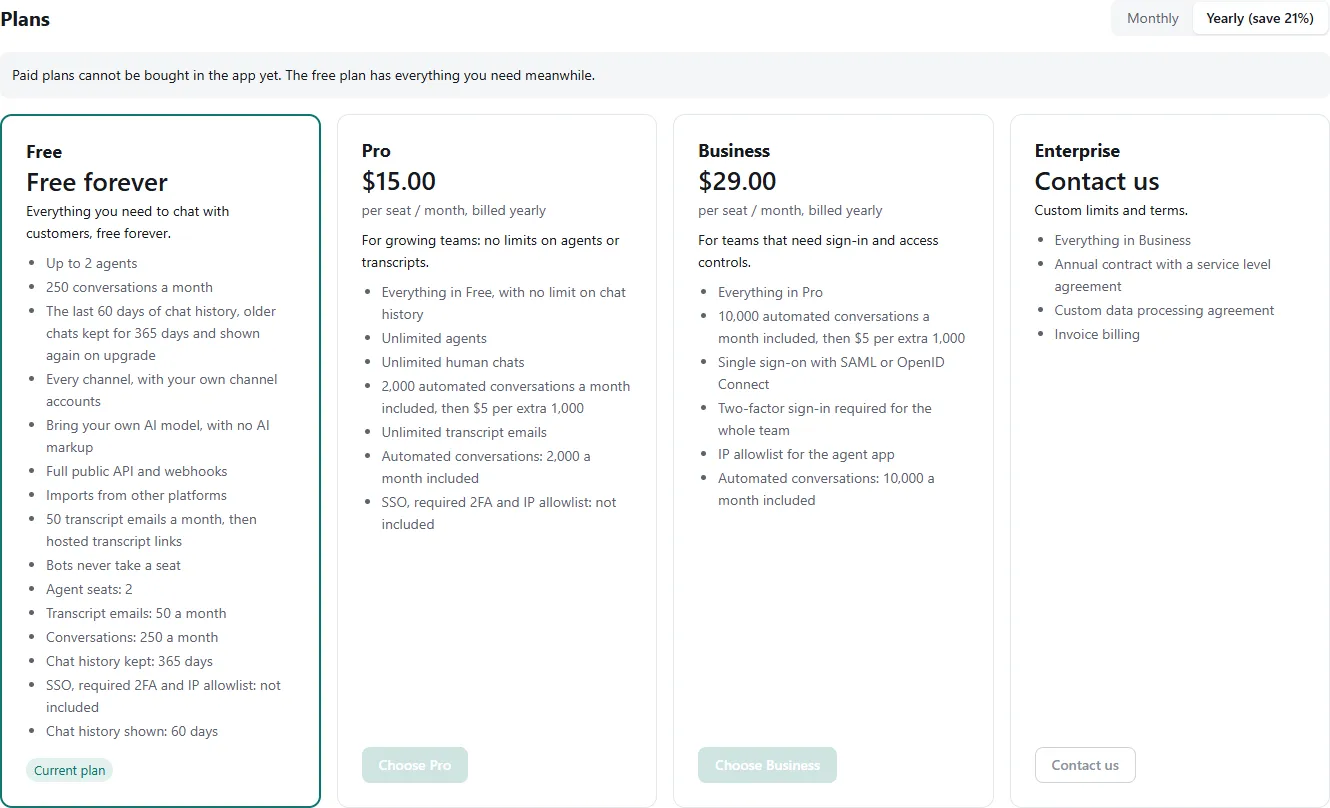
The plan you are on shows Current plan instead of a button. You pay for at least the seats you use.
When paid plans cannot be bought in the app, the page says so above the plans and the paid plans’ buttons are off; use Contact us on a plan.
If a change is refused
Section titled “If a change is refused”| Message | What to do |
|---|---|
| (plan) allows fewer seats than you use. Suspend agents first. | Suspend agents in Team until you fit the plan’s seats. |
| Your prepaid period is still running. You can change plans when it ends. | Wait for the prepaid period to end. |
| A crypto payment is still on its way. Wait until it is confirmed. | Wait for the payment to confirm; the invoice shows Confirming. |
| You are already on (plan). | Nothing to do. |
Buy more seats
Section titled “Buy more seats”When you pay through a card subscription or a prepaid period, Paid seats under the meters sets how many seats you pay for.
- Enter the number of seats in Paid seats.
- Click Buy seats and confirm.
On a card, you are charged now for the added seats for the rest of the billing period. On a prepaid period, you get an invoice for the time left. When all paid seats are taken, accepting an invite, approving a join request or reactivating an agent is refused until you buy more.
Invoices
Section titled “Invoices”Invoices lists every invoice, newest first, with its Date, Item (the subscription, extra seats or a prepaid period), Amount and Status:
- Pay opens an open invoice to pay it.
- View and PDF open a paid invoice.
- Pay the rest finishes a Partly paid crypto invoice.
Billing details
Section titled “Billing details”Who invoices are made out to:
- Fill in Company or legal name, Billing email and Country (a two-letter code, for example DE or US).
- Click Add a tax ID to add one, with its Tax ID type (for example eu_vat, gb_vat or au_abn) and Tax ID. You can add up to five.
- Click Save changes.
Receipts and payment reminders go to the billing email, or to the owner when it is empty. Any account credit is shown here and spent on your next crypto payment.
Invoices and billing details show only when payments are available in the app.
When you reach the monthly conversation cap
Section titled “When you reach the monthly conversation cap”On the free plan, every conversation counts toward the monthly cap. See Plans for the numbers.
- At 80% of the cap, a banner at the top of the app warns you. The billing contact gets an email at 80% and again at the cap.
- At the cap, the banner says new chats are turned away until the first of next month. Chats already going on continue. Customers who try to start a new chat see “Our agents are not available at the moment.”
- See plans on the banner opens Billing. Moving to a paid plan lifts the cap.
The Billing item in the menu also gets a mark while a limit is near or reached. Other monthly limits, such as transcript emails, show a banner when they are used up.