

Transfer, tickets and closing a chat
Everything you do to a chat as a whole lives in the chat header and its menu: handing it on, following it up later as a ticket, and ending it.
Chats -> open a chat -> the … menu in the chat header
The header holds the customer’s name, a Copy chat link button, the chat menu (…) and Show details / Hide details for the details sidebar. The menu offers:
- Transfer to… (open chats)
- Supervise this chat or Stop supervising (see who can, below)
- Create ticket
- Ban this customer
- Stop this chat (open chats)
Tag a chat
Section titled “Tag a chat”Tags sort chats for reports and searches.
- Click Add tag under the message box, or press
Ctrl+Alt+M. - Pick one or more tags. Pinned tags come first; type in Search tag to narrow the list and
press
Enterto pick the first match. The list stays open until you pressEscor click outside it. - To remove a tag, click the x on its chip.
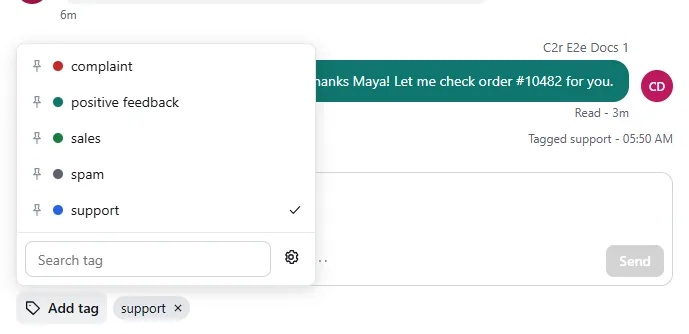
Tags limited to some groups appear only in those groups’ chats. The settings icon in the list opens Tags, where an admin can also require a tag before a chat can be closed.
Transfer a chat
Section titled “Transfer a chat”- Choose Transfer to… from the chat menu.
- Pick the Agent tab or the Group tab, and search if the list is long. Each agent shows how many chats they have against their limit (for example “2/5 chats”); each group shows Agents available or Queue only.
- To tell the next person what is going on, click Add internal note and type it. It is posted as a note before the hand-over; the customer does not see it.
- Click Transfer.
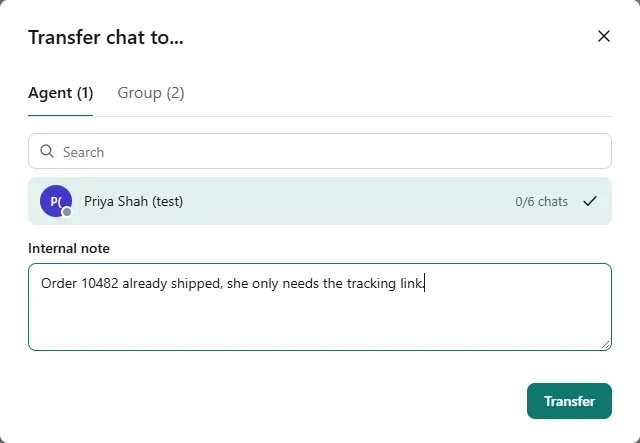
The app confirms Chat transferred. When nobody in the group is free, the chat waits in that group’s queue for the next free agent, and the app says so. If the agent you picked cannot take chats right now, pick someone else.
If no agent in the chat’s group is free, the dialog suggests another group or inviting more agents.
Supervise a chat
Section titled “Supervise a chat”Supervising lets you watch a chat another agent is handling and whisper to them. The customer does not see you.
- Open the chat. For a chat someone else is handling, click Supervise under the conversation, or choose Supervise this chat from the chat menu.
- The header shows Supervising, and the chat moves to Supervised in your list.
- Anything you type is a whisper to the agents in the chat.
- To leave, choose Stop supervising from the chat menu.
Supervise this chat in the menu is offered to people whose role can see every chat (owners, vice owners, admins, or a custom role with that permission). See Roles and permissions.
Create a ticket from a chat
Section titled “Create a ticket from a chat”A ticket keeps the conversation and the customer for follow-up after the chat, for example when an answer needs time. Replies on the ticket reach the customer the way any agent reply in that chat does. You work on it in Tickets.
- Choose Create ticket from the chat menu. This works on archived chats too.
- Check the Subject. It starts as “Chat with” and the customer’s name.
- Pick a Priority: Low, Normal, High or Urgent.
- Click Create ticket.
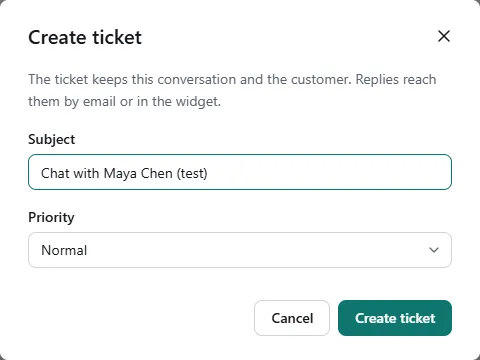
The app confirms Ticket created. and the chat’s feed records it. Reports count how many chats became tickets. See Chats reports.
Ban a customer
Section titled “Ban a customer”Ban a customer who is abusive or spamming.
- Choose Ban this customer from the chat menu.
- Pick a Duration: 1, 3, 7 or 30 days, 6 months, 1 year or 3 years.
- Click Ban customer.
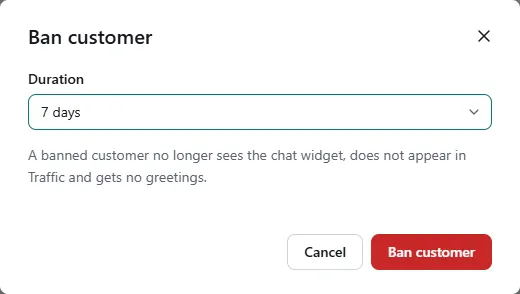
A banned customer no longer sees the chat widget, does not appear in Traffic and gets no greetings. The details sidebar shows Banned until and the date. To lift a ban early, or to ban an IP address, use Banned customers.
Stop a chat
Section titled “Stop a chat”- Choose Stop this chat from the chat menu, or press
Ctrl+Alt+Backspace. - Confirm with Stop chat.
The chat is archived and moves to Archives. If your organization requires a tag before closing, the app asks you to Add a tag before you stop this chat. first.
Chats also end on their own: when the customer closes them, leaves, or stays inactive. The list and the feed say which, for example “Archived - inactivity”. See Inactivity timeouts.
Open an archived chat again
Section titled “Open an archived chat again”An archived chat shows This chat has been archived. under the conversation.
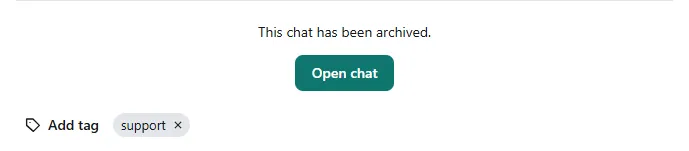
- Click Open chat.
- A new conversation with the same customer starts, assigned to you, and the message box comes back.
If your plan’s conversations for this month are used up, a new conversation cannot start and the app says so. See Plans.
When a chat leaves your list
Section titled “When a chat leaves your list”If a chat is transferred away or taken off you while it is open, the conversation says This chat is no longer in your list. Click Back to my chats.