

Find your way around the agent app
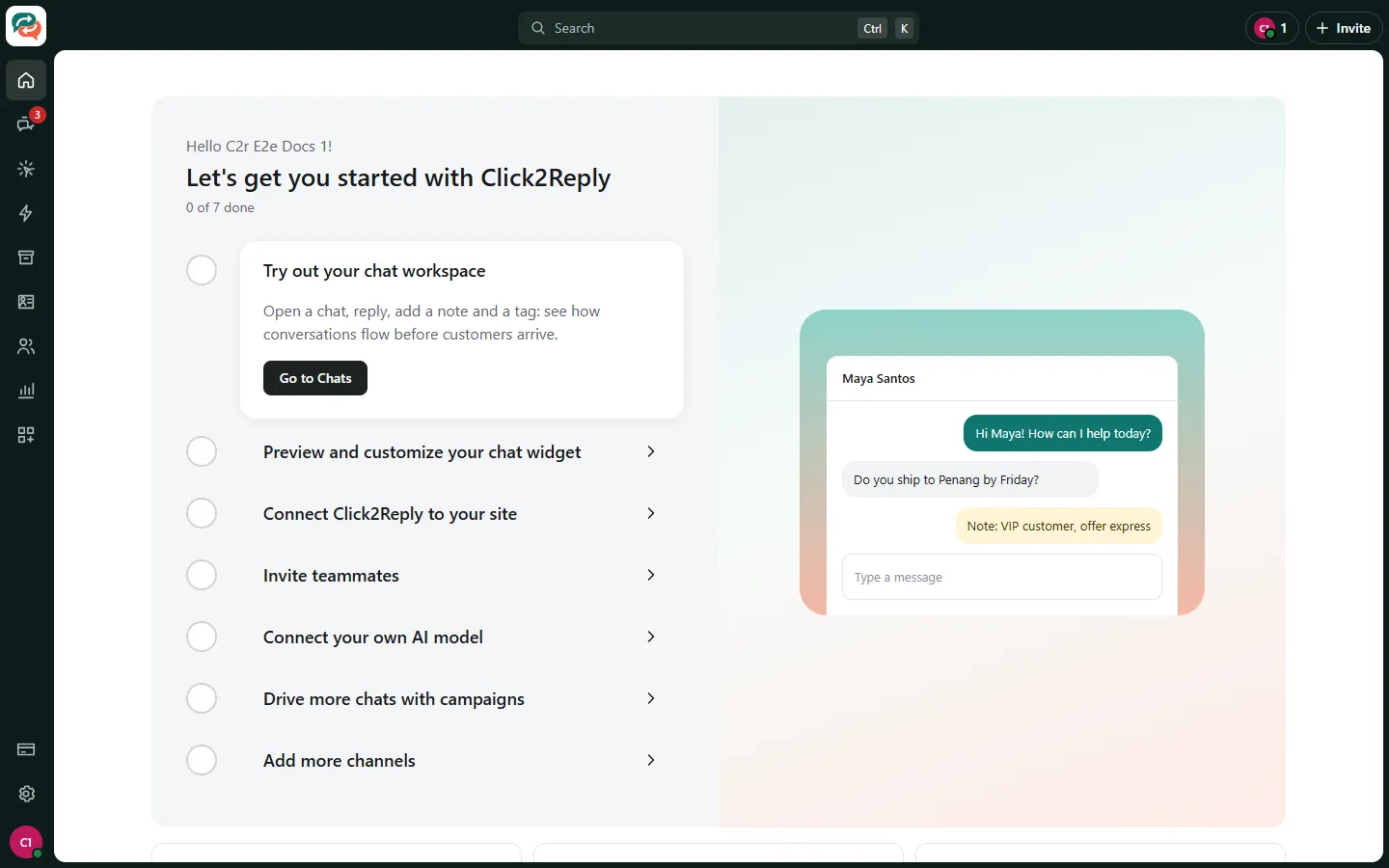
Every screen of the agent app sits in the same frame: the rail of sections on the left, a strip along the top, and the screen itself in the middle. This page explains each part.
The rail
Section titled “The rail”The dark column on the left lists every section of the app, top to bottom:
| Section | What it is for |
|---|---|
| Home | Getting-started checklist and today’s counters. See Home. |
| Chats | Your live conversations. See Chats. |
| Tickets | Follow-ups on chats that outlive them. See Tickets. |
| Engage | Campaigns, goals and live traffic on your website. |
| Automate | Canned responses, routing rules, workflows and the AI agent. |
| Archives | Every past conversation, with search. See Archives. |
| Customers | Everyone who has chatted or visited. See Customers. |
| Team | Agents, groups and invites. See Team. |
| Reports | Numbers about chats, agents and customers. See Reports. |
| Apps | Add tools from the marketplace. See Apps. |
| Billing | Your plan and invoices. See Billing. |
| Settings | Everything about the widget, channels and your organization. See Settings. |
Hover an icon to see its name. A number on Chats counts the chats with unread messages; the same count shows in the browser tab title, for example “(3) Click2Reply”. A ! on a section means something there needs attention, for example the website widget is not installed yet. Your avatar at the bottom of the rail opens the profile menu.
Sections with many pages (Engage, Automate, Reports, Settings, Apps) have their own side menu.
Press [ to hide or show it.
The top strip
Section titled “The top strip”- Search (or
Ctrl+K,Cmd+Kon a Mac) opens search and quick actions. - The agents accepting chats pill shows how many teammates are taking chats right now. Click it to open Team.
- Invite opens the invite dialog in Team.
- The Copilot button opens your AI assistant, when your organization has connected an AI model.
Search and quick actions
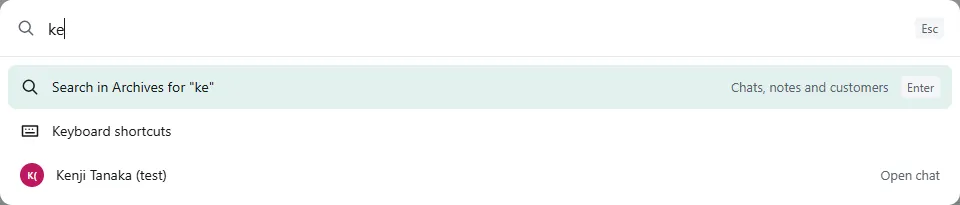
Section titled “Search and quick actions”Press Ctrl + K anywhere, or click Search.
- Type part of a customer’s name or email to jump to one of your open chats.
- Type a section name, such as “reports”, to Go to it.
- Run a quick action: Ask Copilot, Start accepting chats or Stop accepting chats, Keyboard shortcuts, Notification preferences or Invite teammates.
- The first line, Search in Archives, searches past chats, notes and customers for what you
typed. Press
Enterwhen nothing else matches to search there.
Use the arrow keys to move and Enter to pick. Esc closes it.
Copilot
Section titled “Copilot”Copilot is an assistant that runs on your organization’s own AI model. It appears only after an admin connects a model and turns Copilot on in AI model.
- Click the Copilot button in the top strip, or press
Ctrl+G. - Type your question and press
Enter(or click Ask). For example, ask it to summarize a chat or draft a reply, find an answer in your knowledge sources, or explain a setting or a report.
With a chat open, Copilot can see that chat and says so. New conversation clears the history. The conversation lasts only in this browser tab. If your model does not answer, Copilot says to check Settings > AI model.
The profile menu
Section titled “The profile menu”Click your avatar at the bottom of the rail.
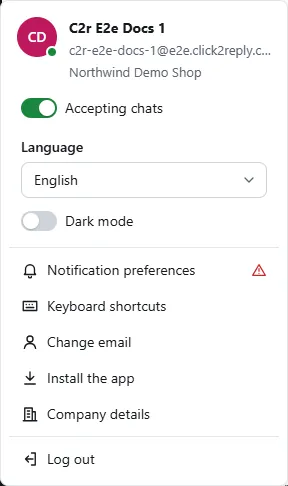
- Your name, email and organization at the top.
- Accepting chats / Not accepting chats: switch this on to get new chats routed to you, off to stop getting new ones. The dot on your avatar shows your status.
- Language: the language of the agent app, saved on your account.
- Dark mode: a dark theme for this browser.
- Notification preferences: sounds and notifications. A warning icon here means browser notifications are on but this browser has not been allowed to show them yet. See Notifications, mobile and push.
- Keyboard shortcuts: the shortcut sheet.
- Change email: change the email you log in with. See Change your login email.
- Install the app: shown when your browser can install Click2Reply as an app.
- Company details: for people who may manage the organization.
- Switch organization: when your account belongs to more than one organization.
- Log out
More in Your profile and two-factor authentication.
Keyboard shortcuts
Section titled “Keyboard shortcuts”Press ? (Shift + /) to open the sheet, or pick Keyboard shortcuts from the profile
menu. On a Mac, Ctrl in the global shortcuts is Cmd.
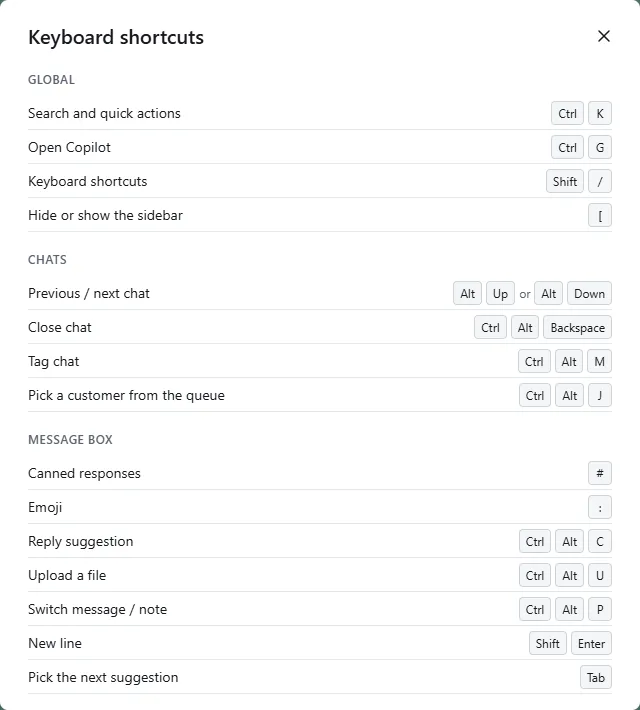
| Where | Shortcut | Does |
|---|---|---|
| Anywhere | Ctrl + K | Search and quick actions |
| Anywhere | Ctrl + G | Open Copilot |
| Anywhere | ? | Keyboard shortcuts |
| Anywhere | [ | Hide or show the sidebar |
| Chats | Alt + Up / Alt + Down | Previous / next chat |
| Chats | Ctrl + Alt + Backspace | Close chat |
| Chats | Ctrl + Alt + M | Tag chat |
| Chats | Ctrl + Alt + J | Pick a customer from the queue |
| Message box | # | Canned responses |
| Message box | : | Emoji |
| Message box | Ctrl + Alt + C | Use the first reply suggestion |
| Message box | Ctrl + Alt + U | Upload a file |
| Message box | Ctrl + Alt + P | Switch message / note |
| Message box | Shift + Enter | New line |
| Message box | Tab | Pick the next suggestion |
Single keys such as ? and [ do nothing while you are typing in a field.
When the connection drops
Section titled “When the connection drops”If the app loses its connection for more than a moment, a bar under the top strip says Reconnecting… (click Try now to retry at once) or that you are offline. Chats update again when the connection is back.
If the app is open in too many tabs or devices, a tab can be disconnected and says so. Click Use here to continue in that tab.
Related
Section titled “Related”- Notifications, mobile and push: the phone layout and its bottom bar.
- Reply to a customer