

Campaigns: greet visitors automatically
A campaign shows a greeting card on your website when a visitor matches the conditions you set, for example after 30 seconds on the pricing page or when they are about to leave the checkout. Agents and admins use it to start more conversations without watching Traffic all day.
Engage -> Campaigns
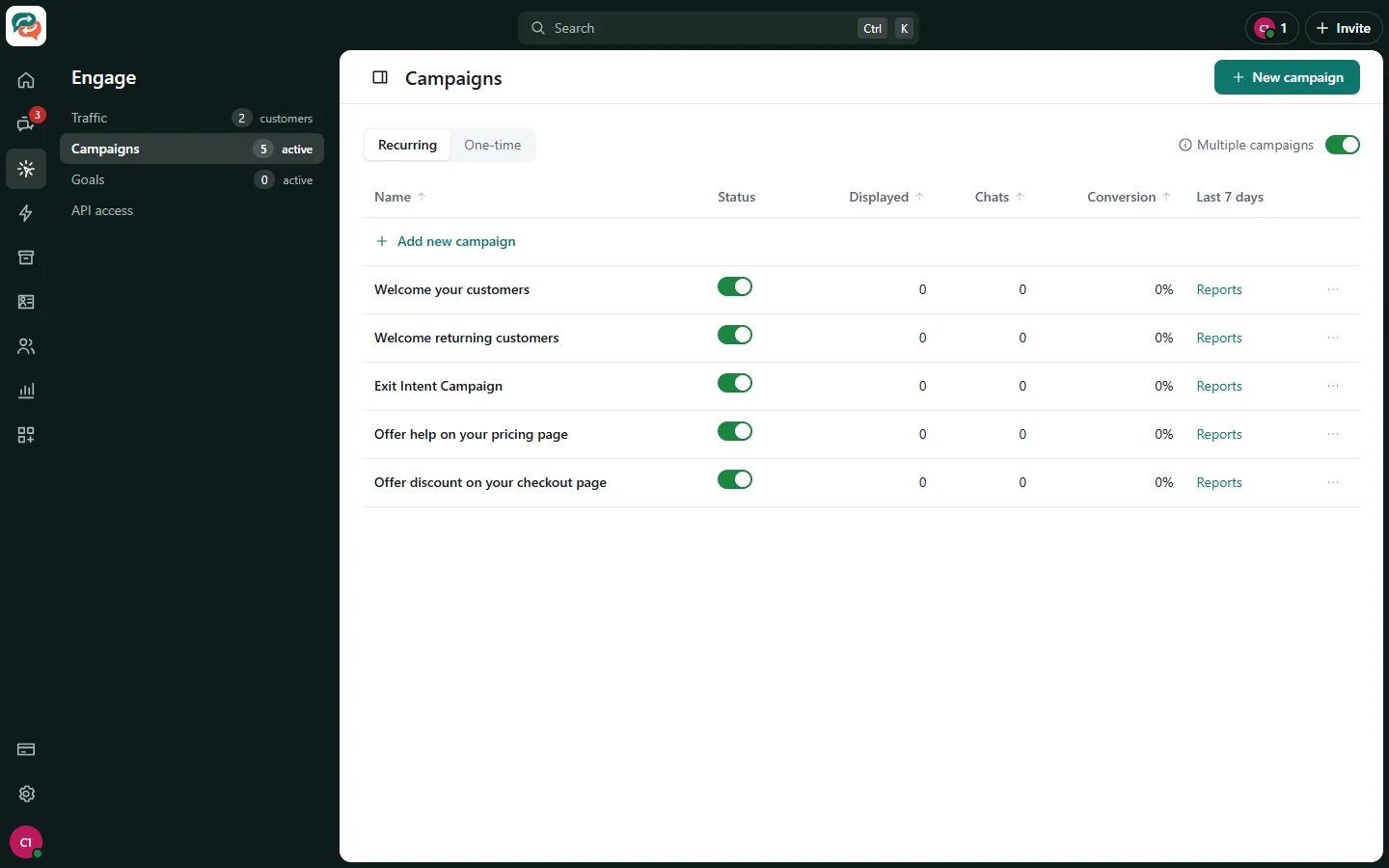
The number next to Campaigns in the side menu is how many campaigns are switched on.
Every agent can manage campaigns. An agent without the permission to change routing, widget and chat settings (see Roles and permissions) works only with campaigns of their own groups, and must pick one of their groups in Group when saving one.
Recurring and one-time campaigns
Section titled “Recurring and one-time campaigns”Switch between the two lists with Recurring and One-time at the top:
- A recurring campaign shows its greeting every time a visitor matches, within the limits you set.
- A one-time campaign shows its greeting once to each visitor who matches, then never again.
Each list shows, for the last 7 days, how many times a greeting was Displayed, how many Chats it led to, and the Conversion (chats per display). Reports opens the campaign report in Chat reports.
Create a campaign
Section titled “Create a campaign”-
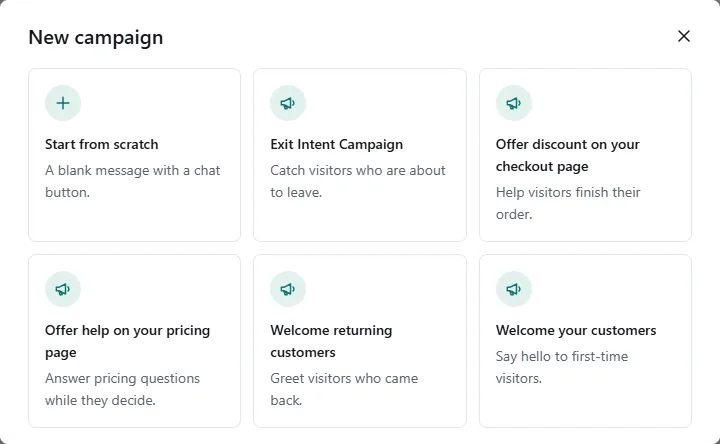
Click New campaign.
-
Pick Start from scratch (a blank message with a chat button) or one of the ready-made campaigns.
-
Name it: click the pencil next to the title (Rename campaign), type the name and press Enter.
-
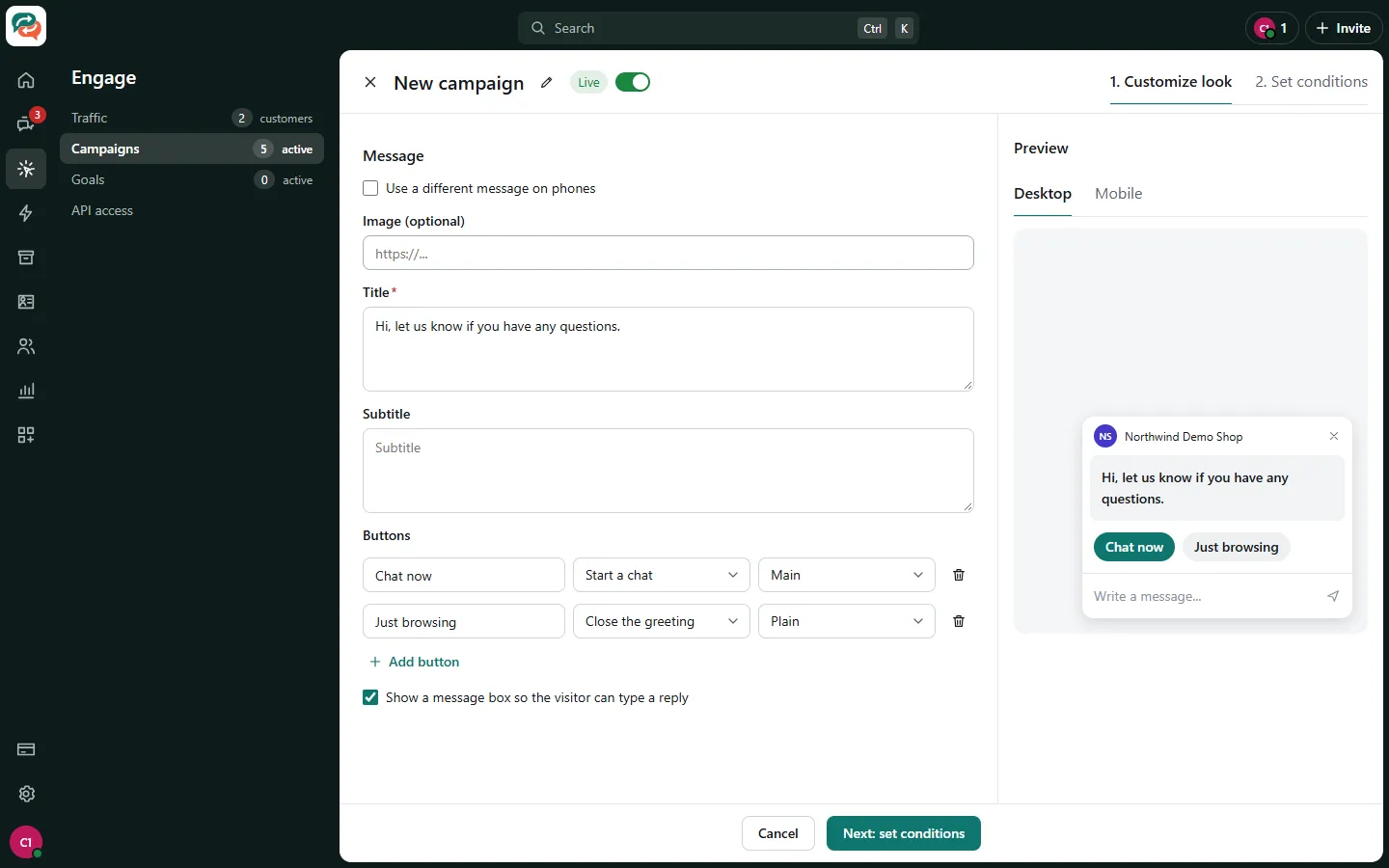
Design the card in 1. Customize look (below), then click Next: set conditions.
-
Choose who sees it and when in 2. Set conditions (below).
-
Check the switch next to the title. A new campaign starts switched on (Live); switch it off (Off) to save it without showing it yet.
-
Click Save campaign.
If something is missing, the editor lists what to fix above the form, for example “Add a message title.” or “A link button needs a full URL.”
Design the card
Section titled “Design the card”The Preview on the right shows the card as the widget draws it. Switch it between Desktop and Mobile.
-
Image (optional) - a picture at the top of the card, from an
https://address. -
Title - the main line. Required.
-
Subtitle - a second, smaller line.
-
Buttons - up to 4. Give each a label and an action:
- Start a chat opens the chat.
- Send a message as the visitor sends the text you type, as if the visitor wrote it.
- Open a link opens a full
httporhttpsaddress. - Close the greeting closes the card.
Set each button’s style to Main or Plain, and remove one with its trash button.
-
Show a message box so the visitor can type a reply - adds a reply field under the card.
-
Use a different message on phones - keeps a separate version for phones. Switch the preview to Mobile to edit it, and back to Desktop for the other one.
Choose who sees it and when
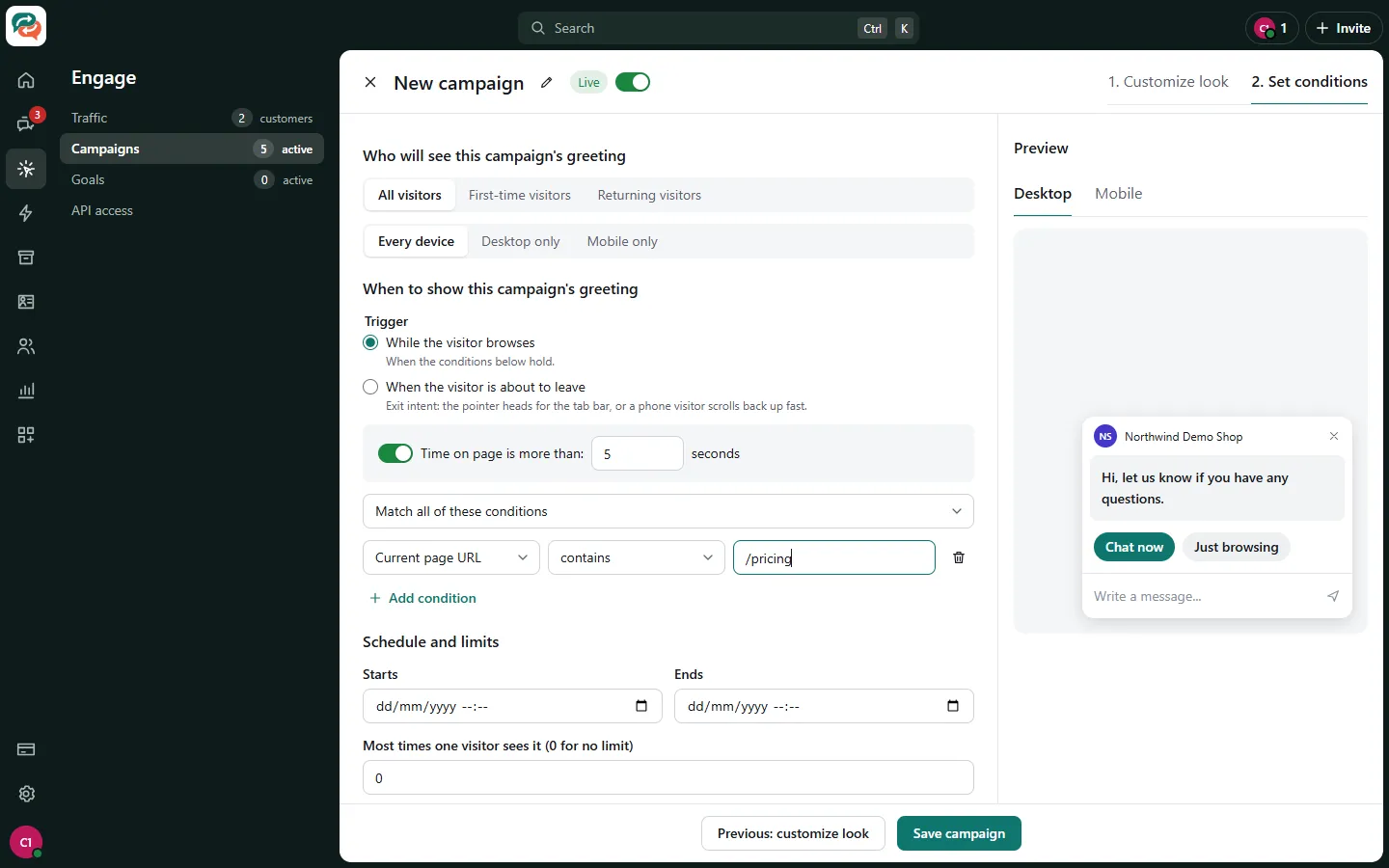
Section titled “Choose who sees it and when”- Who will see this campaign’s greeting: All visitors, First-time visitors or Returning visitors, and Every device, Desktop only or Mobile only.
- Trigger:
- While the visitor browses - when the conditions below hold.
- When the visitor is about to leave - when the pointer heads for the tab bar, or a phone visitor scrolls back up fast.
- Time on page is more than - switch it on and enter the seconds the visitor must spend on the page first.
- Add condition - add up to 30 conditions, such as Current page URL, Customer’s
location (a country code like
TH), Customer’s browsing time, Number of viewed pages, Referring website address, Pages visited in exact order, Number of visits, Browser language, a UTM tag, Cart value or Custom variable. With more than one, choose Match all of these conditions or Match any of these conditions.
Under Schedule and limits:
- Starts and Ends - the dates the campaign runs between. Leave them empty to run it with no end.
- Most times one visitor sees it (0 for no limit) and At most once per visit - recurring campaigns only.
- Group - show the campaign only to visitors in this group, or Every group.
- Priority (higher wins when several match) - from -1000 to 1000.
Show more than one campaign per visit
Section titled “Show more than one campaign per visit”The Multiple campaigns switch at the top of the list decides what happens when several campaigns match the same visitor. Off, a visitor sees at most one greeting per visit, from the highest-priority campaign. Changing it needs the permission to change routing, widget and chat settings.
Edit, duplicate or delete a campaign
Section titled “Edit, duplicate or delete a campaign”- Click a campaign, or choose Edit in its menu, to open the editor.
- Use the switch in the Status column to turn a campaign on or off right from the list.
- Duplicate makes a copy named “(copy)”. The copy stays off until you switch it on.
- Delete asks you to confirm. The campaign stops showing and its numbers leave the list; this cannot be undone.
Closing the editor with unsaved changes asks before it drops them.
What the visitor sees
Section titled “What the visitor sees”When a campaign matches, the visitor sees the card on your website, as in the preview. A visitor who gets a greeting shows as Invited in Traffic until they answer, and a chat started from it counts toward the campaign’s Chats.