

Widget language and welcome message
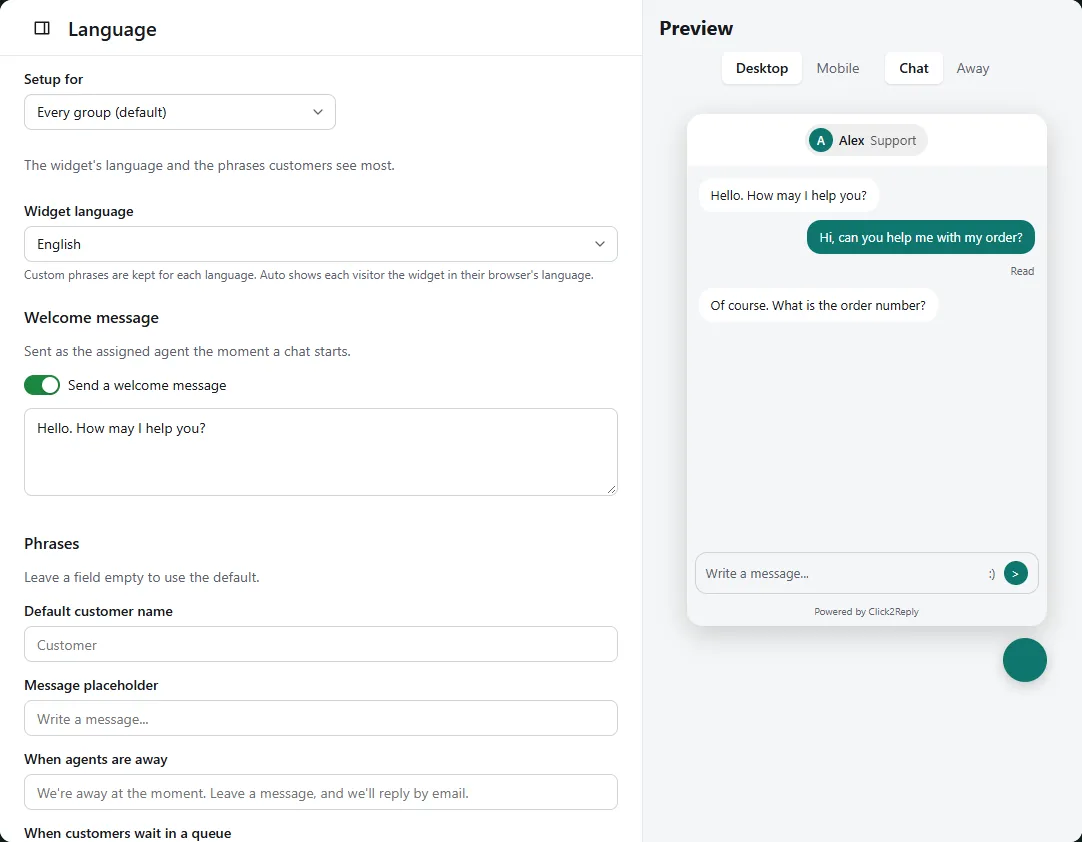
Set the language the chat widget speaks to customers, and change the wording of the phrases they see most. The Preview shows the result in the Chat and Away views.
Settings -> Chat widget -> Language
Changing these settings needs the permission to change settings (the Owner, Vice owner and Admin roles). With two or more groups, pick one under Setup for to give that group’s widget its own language and phrases (see Settings).
Choose the widget language
Section titled “Choose the widget language”- Open Widget language and pick a language, or Auto (visitor’s browser).
- Click Save changes.
Auto shows each visitor the widget in their browser’s language. A fixed language shows every visitor the same one.
Send a welcome message
Section titled “Send a welcome message”The welcome message is sent as the assigned agent the moment a chat starts.
- Switch Send a welcome message on.
- Type the message in the box under it.
- Click Save changes.
Switch it off to start chats without one.
Change a phrase
Section titled “Change a phrase”Under Phrases you can reword:
- Default customer name - the name a customer has until they give theirs.
- Message placeholder - the hint in the message box.
- When agents are away - the text customers see while nobody is available.
- When customers wait in a queue - the text a queued customer sees.
- If the widget language is Auto, pick the language to edit in Edit phrases for. Custom phrases are kept for each language.
- Type your wording in a field. The default text shows in the empty field.
- Click Save changes.
Leave a field empty to use the default again.