

Single sign-on with SAML or OpenID
Single sign-on (SSO) lets your team sign in to Click2Reply through your own identity provider, over SAML 2.0 or OpenID Connect. You add the provider here, then verify the email domains it signs in for, so that sign-in finds the right provider.
Settings -> Security -> Single sign-on
Owners, vice owners and admins can open this page. Adding a provider, switching one back on and adding email domains need every permission in the organization, which in practice means the owner or a vice owner. Turning on Create accounts for new people on first sign-in also needs permission to manage the team.
SSO is part of the security controls that only some plans include. On other plans, saving says Your plan does not include this. Upgrade on the Billing page. See Plans.
Add an identity provider
Section titled “Add an identity provider”- Click Add provider.
- Choose OpenID Connect or SAML 2.0.
- Enter a Name your team will recognize, for example Company login.
- Fill in the details from your identity provider:
- For OpenID Connect: Issuer URL (https), Client ID and Client secret.
- For SAML 2.0: Identity provider entity ID, Sign-in URL (https) and the Signing certificate (paste the certificate text).
- Click Save provider.
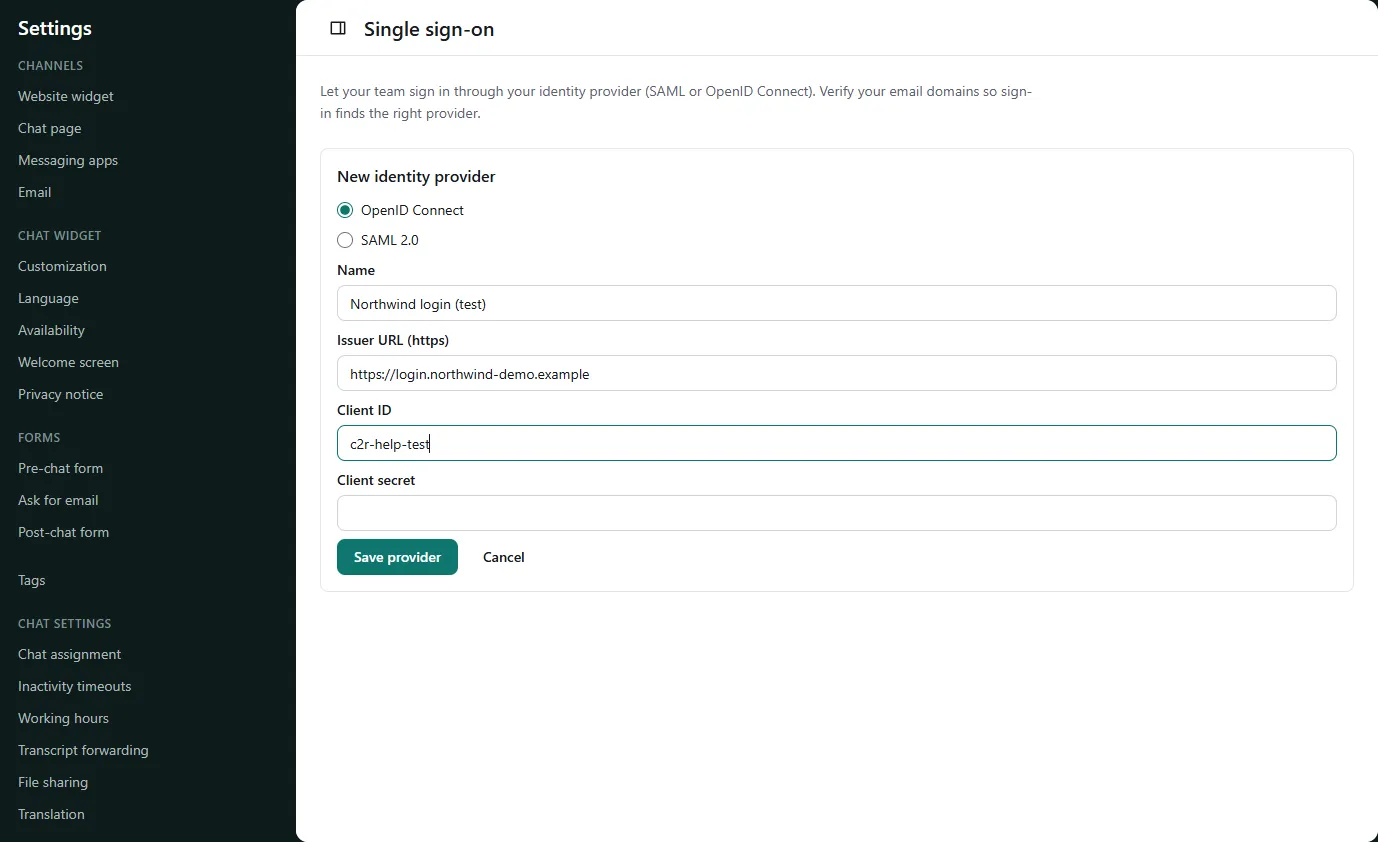
The provider appears as a card, switched on. If a field is wrong, the card says Check the fields.
Register Click2Reply at your identity provider
Section titled “Register Click2Reply at your identity provider”Each provider card shows, under Register these at your identity provider, what to enter on the identity provider’s side:
- OpenID Connect: the Redirect URI.
- SAML 2.0: the Entity ID and the Reply (ACS) URL.
Copy these into the app or client you create at your identity provider.
Verify your email domains
Section titled “Verify your email domains”Sign-in only trusts your identity provider for email addresses on a domain you have proved you own.
- On the provider card, under Email domains, type the domain, for example
company.com. - Click Add domain. The domain appears with a TXT record next to it, starting
c2r-domain-verification=. - At your DNS host, add that TXT record to the domain itself.
- Back on the card, click Verify. The domain then shows Verified.
If Click2Reply cannot find the record yet, it says The TXT record was not found yet. DNS can take a while; try again later. Wait a few minutes and click Verify again.
Create accounts on first sign-in
Section titled “Create accounts on first sign-in”By default, only people who are already on your team can sign in with SSO. To let new colleagues in straight from your identity provider:
- On the provider card, tick Create accounts for new people on first sign-in.
- In They join as, choose Agent or Admin.
The change saves at once. A person created this way takes a seat on your plan; if no seat is free, their sign-in fails.
Turn a provider off or remove it
Section titled “Turn a provider off or remove it”- Switch Enabled off to stop sign-in through that provider without losing its setup. Switch it on again later.
- Click Remove provider and confirm with Remove to delete it. People who sign in only through it will need a password.
To make SSO the only way to sign in, see Login settings.
Sign in with single sign-on
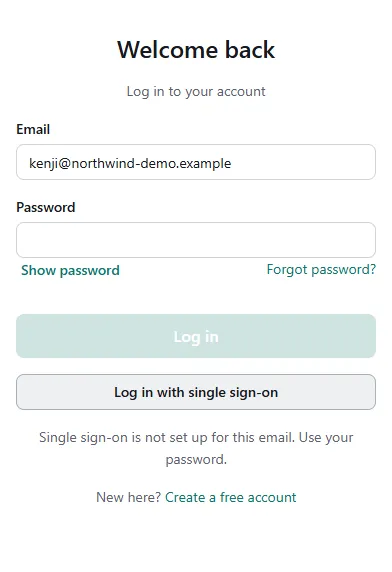
Section titled “Sign in with single sign-on”- On the Click2Reply log in page, enter your work Email.
- Click Log in with single sign-on.
- Sign in at your identity provider.
You come back to a Signing you in page and land in the app. Click2Reply does not ask for a two-factor code on top of a single sign-on sign-in.
If your organization allows only single sign-on, clicking Log in with a password takes you to your identity provider too.
If sign-in does not work
Section titled “If sign-in does not work”- Single sign-on is not set up for this email. Use your password. - no enabled provider has your email’s domain verified. Sign in with your password, or ask an admin to verify the domain.
- Your organization signs in with single sign-on, and it could not start. Ask your administrator. - SSO is required, but it could not start, for example because the provider is switched off.
- Single sign-on did not finish - the identity provider sent you back, but Click2Reply did not sign you in. Common causes: you are not on the team and Create accounts for new people on first sign-in is off, your email domain is not verified on this provider, no seat is free, or your account is suspended. Click Back to log in, and ask an admin to check the provider.