

Workflows: automate steps in chats
A workflow runs a list of steps when something happens: a chat starts, a customer writes, a tag is added, a time of day comes round. Admins use workflows to tag, route, message and notify without anyone doing it by hand.
Automate -> Workflows
Workflows need the permission to change routing, widget and chat settings; without it, the menu item is not shown.
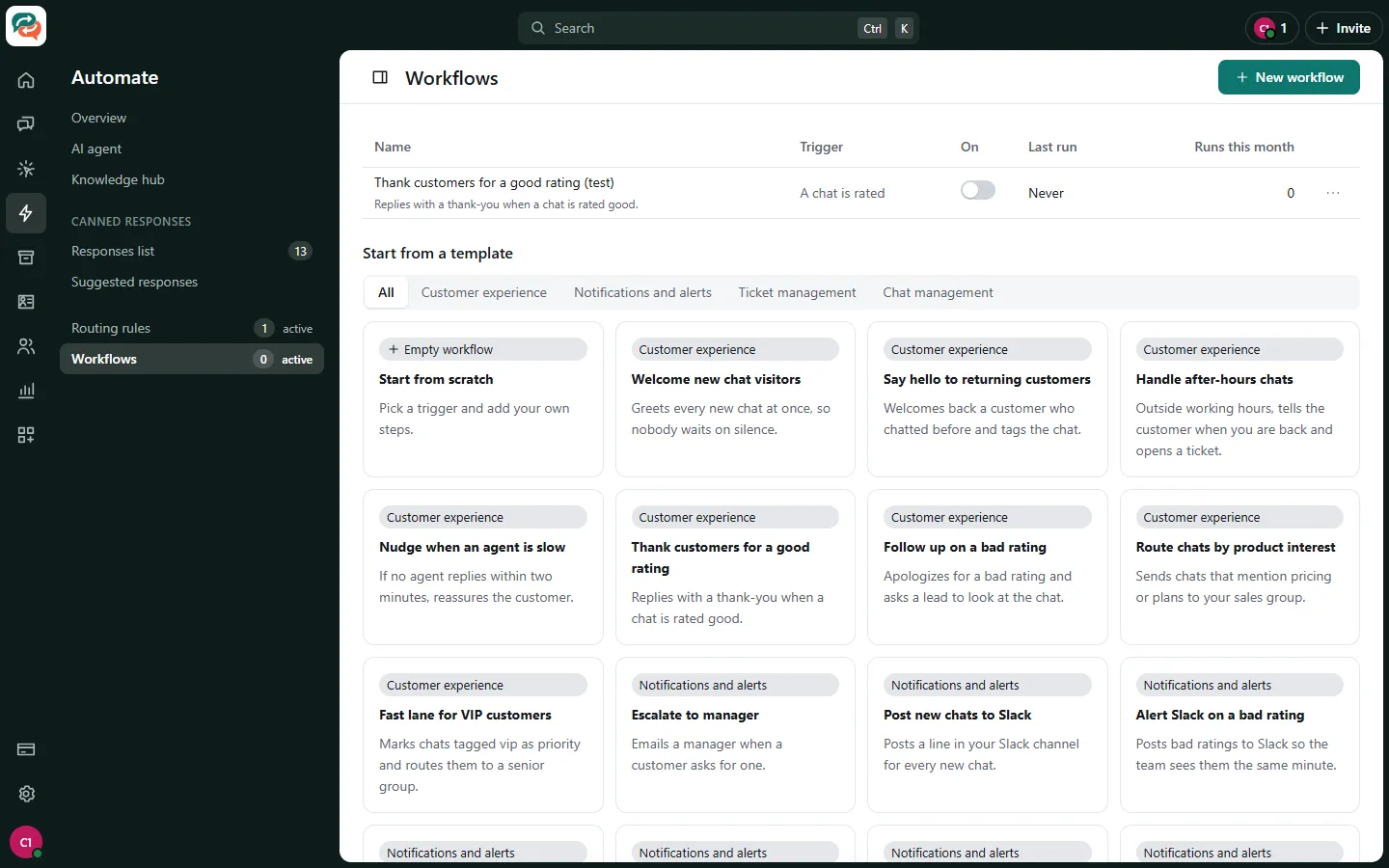
The list shows each workflow’s Trigger, whether it is On, its Last run and its Runs this month.
Create a workflow
Section titled “Create a workflow”-
Click New workflow, or pick a card under Start from a template. All and the category buttons (Customer experience, Notifications and alerts, Ticket management, Chat management) narrow the templates; Start from scratch gives an empty one.
-
Enter a Name and, if you like, a Description.
-
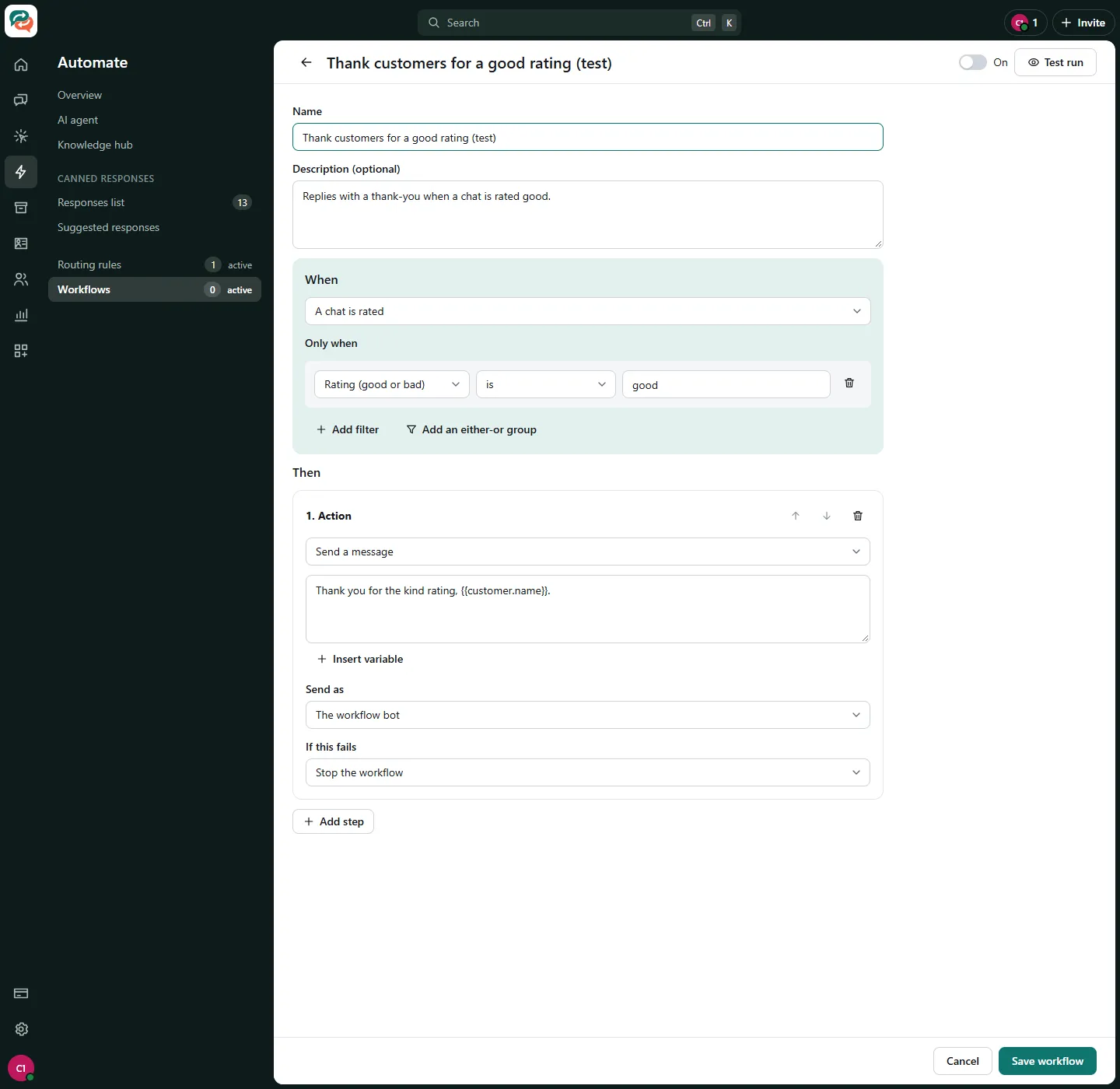
Under When, choose the trigger (see below) and, if needed, add filters with Add filter. The workflow then runs only when its filters match (Only when).
-
Under Then, click Add the first step and build the steps (see below).
-
Switch on On at the top when it is ready. A new workflow starts off.
-
Click Save workflow. Later changes are saved with Save changes.
A template opens as an unsaved draft that is switched off. Its To fill in box lists what the template needs from you, such as a group or a connection, with a tick as each is filled in.
If something is missing, the step that needs it is marked “Fill in this step.” and saving waits until it is fixed.
Triggers
Section titled “Triggers”A workflow starts on one of these:
- Chat events: A chat starts, A chat is queued, A chat is assigned, A chat is transferred, A chat goes idle, A chat is closed, A chat is rated, A customer sends a message, An agent replies, A tag is added, A tag is removed.
- Customers and visitors: A new customer is created, A customer comes back, A visitor reaches a goal.
- Tickets: A ticket is created, A ticket is updated.
- An agent changes status.
- On a schedule - pick a Repeat such as Every weekday at 09:00, or Custom (cron), and the Time zone.
- A webhook is called - your own system calls the workflow’s URL (see below).
Actions that work on a chat, such as adding a tag or sending a message, are offered only for triggers that come with a chat.
Add step offers five kinds of step. They run from top to bottom; use the arrows to reorder and the trash button to remove one.
- Action - does one thing (list below). If this fails sets whether to Stop the workflow or Go on with the next step.
- Condition - checks fields of the event, for example Message text contains any of
refund, broken, late, or Within working hours is Yes. Choose Match all of these or Match any of these, and use Add an either-or group for a set of alternatives. Then add the steps for If yes and If no. - Wait - pauses for a number of minutes, hours or days, up to 30 days.
- Wait for working hours - goes on at once inside working hours, otherwise when they next open. Choose The organization’s hours or a group’s.
- Wait for an event - waits until something happens in the same chat, such as A customer sends a message, with Give up after a time. Add the steps for If it happens and If it times out. Only workflows with a chat trigger can wait for an event.
A workflow holds up to 50 steps, branches included, and conditions and waits can be nested up to 4 deep.
Actions
Section titled “Actions”- Add a tag, Remove a tag
- Route to a group, Assign an agent
- Send a message and Send a canned response - choose who it is sent as in Send as (The workflow bot, an agent or a bot).
- Add an internal note - only agents see it.
- Close the chat, Set priority (Mark as priority or Remove priority), Set a chat property
- Mark as spam - optionally bans the customer for a number of days.
- Create a ticket - with a subject, priority and group.
- Send an email - to The assigned agent, The customer or An address.
- Call a webhook - a request to your own URL, with headers and a body; leave the body empty to send the run’s details as JSON. Pick a signing secret to sign it, or Not signed.
- Post to Slack, Update Shopify - need a connection (below).
- Run your AI - Summarize the chat or Let the AI agent answer. It is skipped until you connect your own AI model.
Texts can include values from the event: click Insert variable to add one, such as
{{customer.name}}.
Connections
Section titled “Connections”A connection holds a credential an action uses: a Slack incoming webhook, a Shopify store (the shop address and an admin API access token) or a Webhook signing secret (16 characters or more). Open them with Manage connections next to the step’s connection field. A secret is never shown again after you add it. Removing a connection makes the steps that use it fail until you pick another.
Webhook trigger URL
Section titled “Webhook trigger URL”For A webhook is called, save the workflow first to get its Webhook URL. It is shown in full only once, so copy it then. Rotate URL makes a new one; the old one stops working at once.
Test a workflow
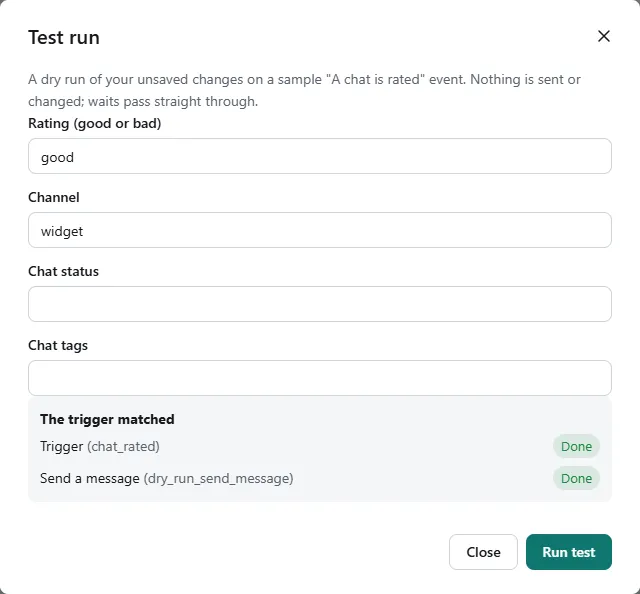
Section titled “Test a workflow”- Click Test run at the top (it is available once nothing is missing).
- Fill in the sample values for the event, for example a message text.
- Click Run test.
The test is a dry run: nothing is sent or changed, and waits pass straight through. It shows whether the trigger matched and what each step would do. It uses your unsaved changes, if any.
Check the run log
Section titled “Check the run log”Once a workflow is saved, open its Run log tab. Each run shows when it Started, its status (Running, Waiting, Done, Failed, Canceled or Stopped by a limit), the workflow Version, the Reason it failed and the Chat. Filter by status with All runs. Click a run to see each step’s result: Done, Failed, Skipped or Waiting.
Stopped by a limit means a safety limit stopped the run, for example a workflow running for the same chat again and again in a short time.
Versions
Section titled “Versions”Every save is a new version. The Versions tab lists them; Restore makes an older version the current one, as a new version. Runs already going on keep the version they started on.
If someone else saved the workflow while you were editing, you are asked to Load the newest (your changes are dropped), Keep editing, or Save over it.
Turn off or delete a workflow
Section titled “Turn off or delete a workflow”Use the On switch in the list to pause a workflow. Delete in its menu removes it after you confirm, and its run log is deleted too.
Related
Section titled “Related”- Routing rules for sending new chats to a group by page or country.
- Canned responses for the responses a workflow can send.
- Working hours used by Wait for working hours.