

Chats: the chat list and the queue
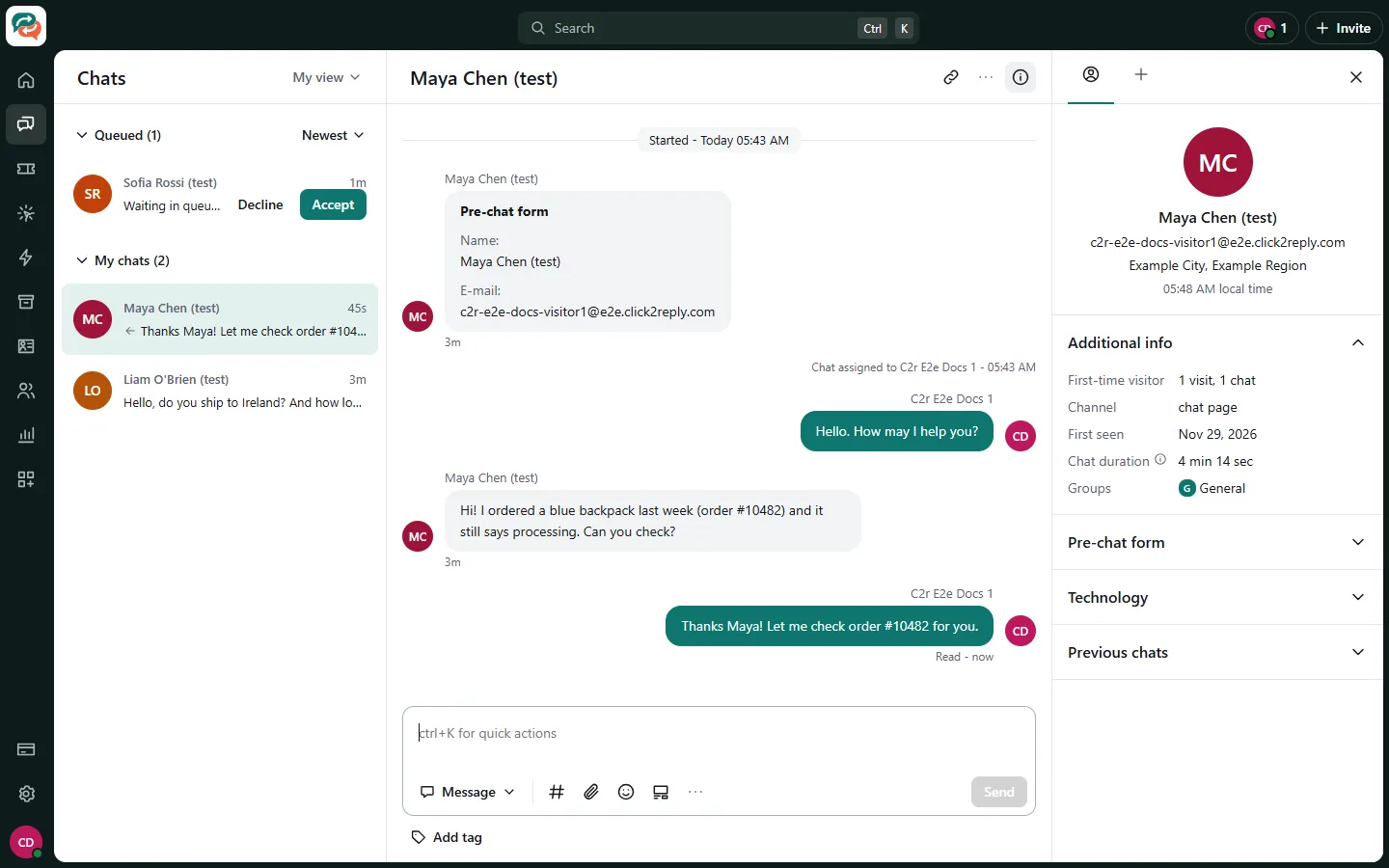
Chats is where you talk to customers live. The screen has three columns: the chat list, the open conversation, and the customer’s details.
Chats
Chats, and the Accepting chats switch, show only to people whose role can work on chats; a custom role without that permission sees neither (see Roles and permissions).
You need to be accepting chats to get new ones: switch on Accepting chats in the profile menu. While you are not, an empty Chats screen says You are not accepting chats.
The chat list
Section titled “The chat list”Chats are grouped into sections. A chat appears in one section only: the first that applies, in this order.
| Section | What is in it |
|---|---|
| Queued | Customers waiting in the queue for a free agent, in queue order. The row shows the position, for example “Waiting in queue - #2”. |
| Unassigned | Chats waiting for an agent that are not in the queue. |
| My chats | Chats assigned to you or that you are in. Idle chats (no messages for a while) are counted apart, for example “My chats (3 + 1 idle)”. |
| Supervised | Chats you are watching as a supervisor. |
| Bot | Chats a chatbot is handling. |
| Other chats | Other agents’ chats. Shown only in the All chats view. |
Click a section heading to fold or unfold it. Use Newest / Oldest next to the first heading to sort the sections (the queue always keeps its own order).
Each row shows the customer’s name, the channel when it is not your website (for example “whatsapp”), how long ago the last message came and a preview. The preview can also show typing…, what the customer is typing before they send it, whether the chat was rated, or why it was archived (for example “Archived - inactivity”). A dot means unread messages.
My view and All chats
Section titled “My view and All chats”The menu at the top of the list switches between:
- My view: your chats, the queue, unassigned, supervised and bot chats.
- All chats: the same, plus Other chats, so you can see what the rest of the team is handling. Agents see the chats of their own groups; roles that may see all chats see every group.
On a wide screen, Chats opens your first chat by itself. On a narrower screen the list gives way to the open chat; use the back arrow in the chat header to return to the list.
Accept a waiting chat
Section titled “Accept a waiting chat”Rows in Queued and Unassigned have two buttons:
- Click Accept to take the chat. It opens and moves to My chats.
- Or click Decline to pass on it. It leaves your list and is not offered to you again while it waits; other agents can still take it.
You can also open a waiting chat first and use Accept chat or Decline below the conversation.
To take the customer who has waited longest in your groups without picking one, press
Ctrl + Alt + J. If nobody is waiting, the app says so.
If two agents accept at once, the second sees Another agent took this chat first.
Move between chats
Section titled “Move between chats”- Click a row, or press
Alt+Up/Alt+Downfor the previous or next chat. - Search for a customer with
Ctrl+K. See Search and quick actions. - Copy a link to a chat with the link icon in the chat header and send it to a teammate.
- New chats ring a sound and can show a notification. See Notifications, mobile and push.
- How chats reach agents (automatically, or through the queue) is set in Chat assignment, and limits per agent in Team.
- Ended chats move to Archives.
- When your plan’s conversations for the month are used up, new conversations cannot start. The app says so, and who can change the plan. See Plans.